With the excellent new SOA-P 4.3 tooling in JBDS 2.0 (ESB project wizard, jboss-esb.xml file editor, ESB quickstart example importer, jBPM project creator, and jBPM JPDL editor), creating SOA-P 4.3 applications has become much easier.
The first step to using these new features is to configure JBDS 2.0 to use a SOA-P 4.3 server instance. This wiki will demonstrate how to do that.
Prerequisites:
Install Java 1.5
Install SOA-P 4.3 GA
Install JBDS 2.0.0.CR1
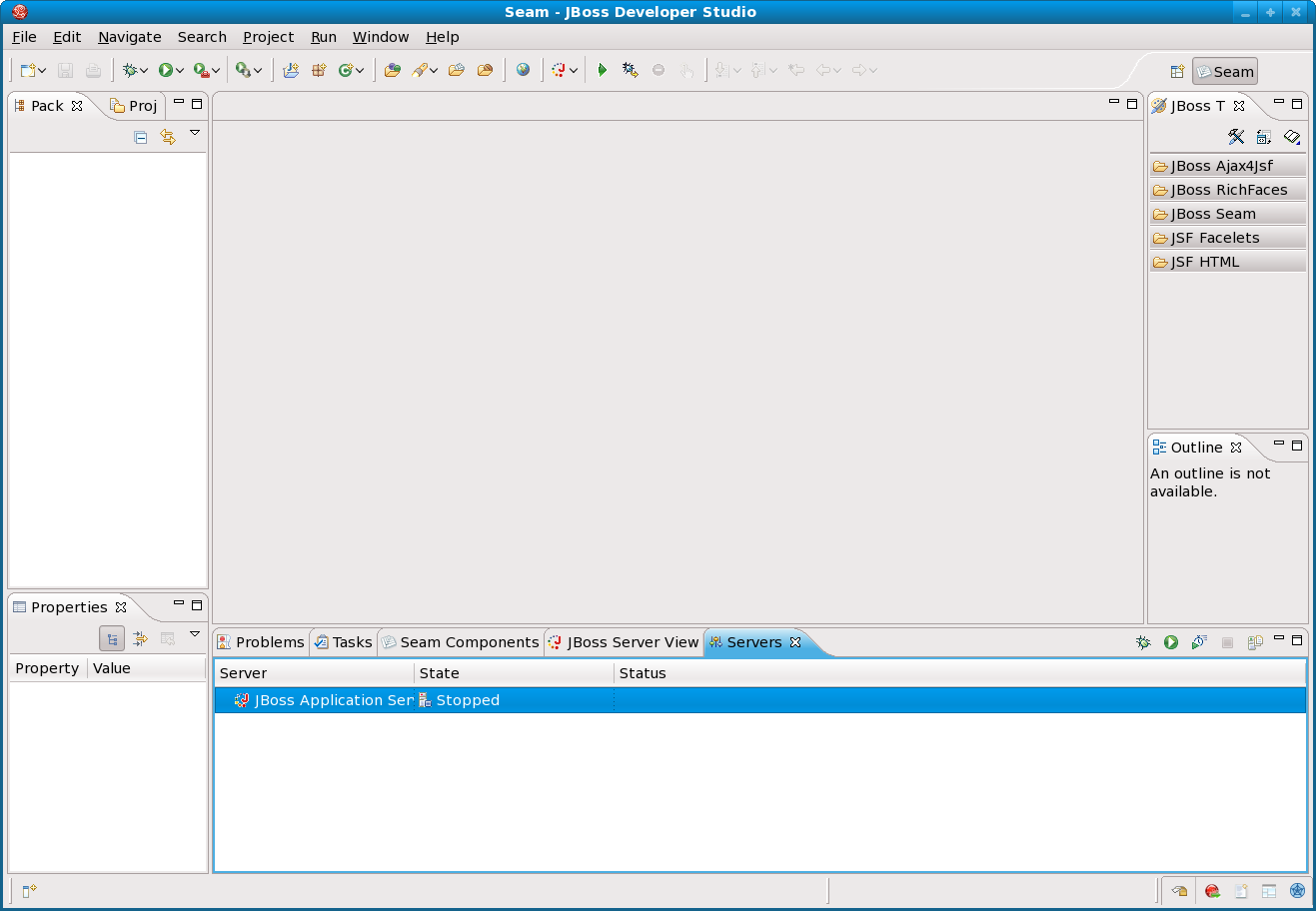
First, we can just start the default JBDS 2.0 IDE.
http://community.jboss.org/servlet/JiveServlet/downloadImage/102-13380-1-1218/362-251/jbds_1.png
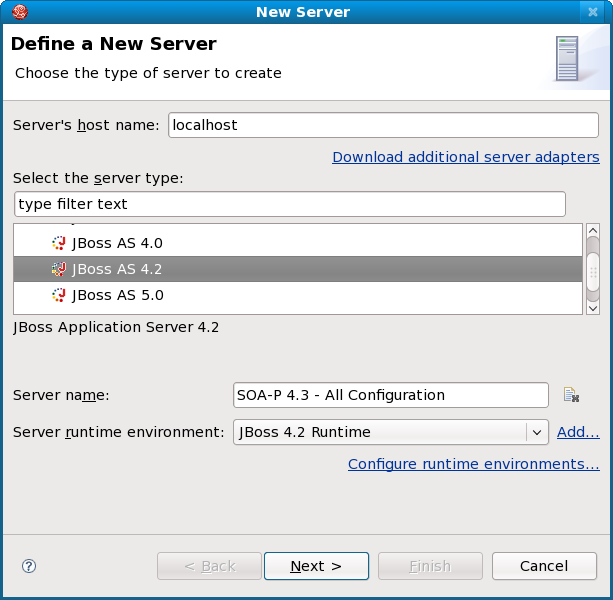
Now, we need to right-click in the "Servers" tab and add a new server.
http://community.jboss.org/servlet/JiveServlet/downloadImage/102-13380-1-1219/317-311/jbds2.png
We'll change the server name to SOA-P as shown above and then need to add a new server runtime environment by clicking the "Add..." link.
http://community.jboss.org/servlet/JiveServlet/downloadImage/102-13380-1-1220/306-286/jbds3.png
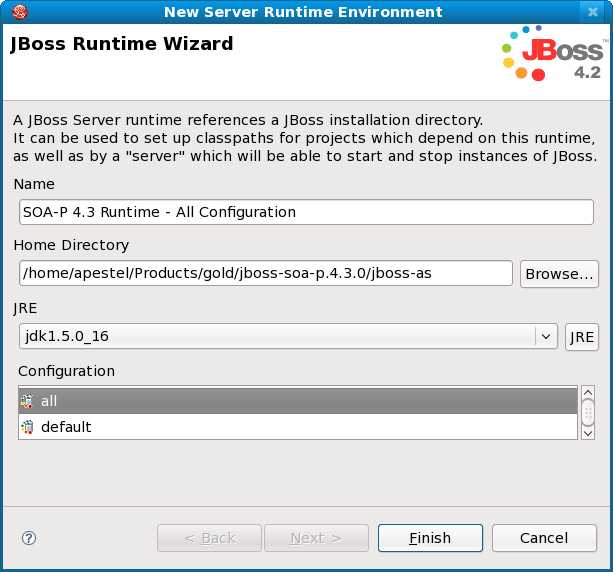
As shown above, we can give it a descriptive name, set the home directory to be the "jboss-as" directory in SOA-P 4.3, and pick our server configuration (I usually use the "all" configuration). Now click the "Finish" button to get back to the New Server dialog.
http://community.jboss.org/servlet/JiveServlet/downloadImage/102-13380-1-1222/282-283/jbds9.png
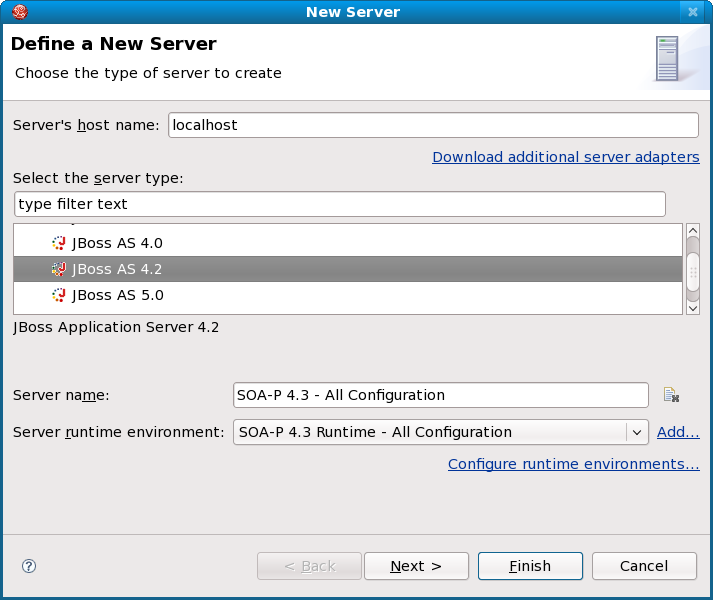
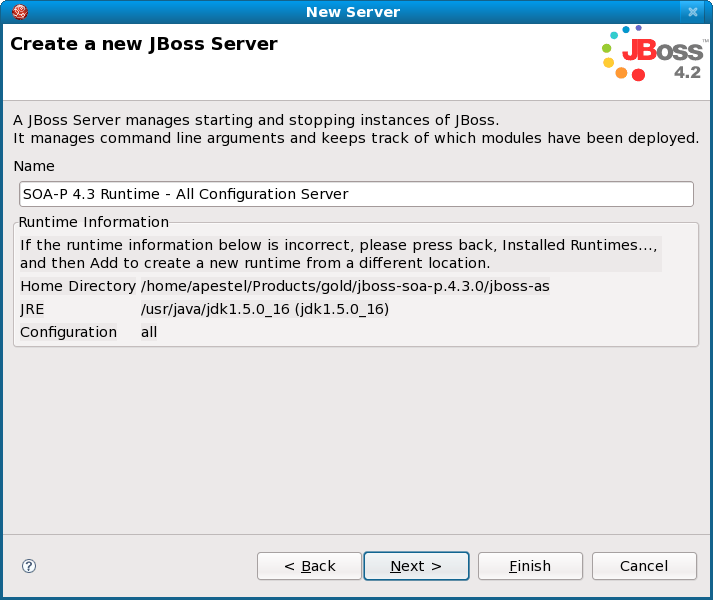
We can select our new Server runtime environment as shown above and click the "Next" button.
http://community.jboss.org/servlet/JiveServlet/downloadImage/102-13380-1-1221/374-315/jbds5.png
Again, we just click the "Next" button.
http://community.jboss.org/servlet/JiveServlet/downloadImage/102-13380-1-1223/358-301/jbds6.png
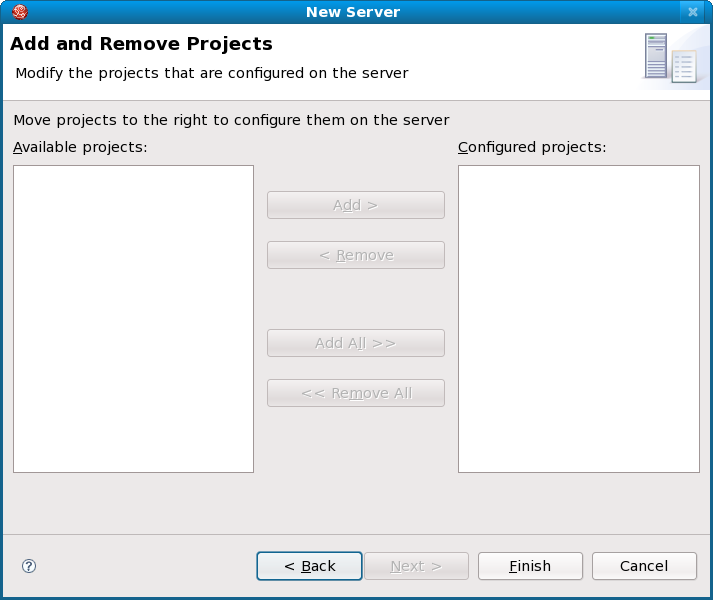
If we had existing project to add to the SOA-P server, we could do that now, but we don't, so just click "Finish".
http://community.jboss.org/servlet/JiveServlet/downloadImage/102-13380-1-1224/393-231/jbds7.png
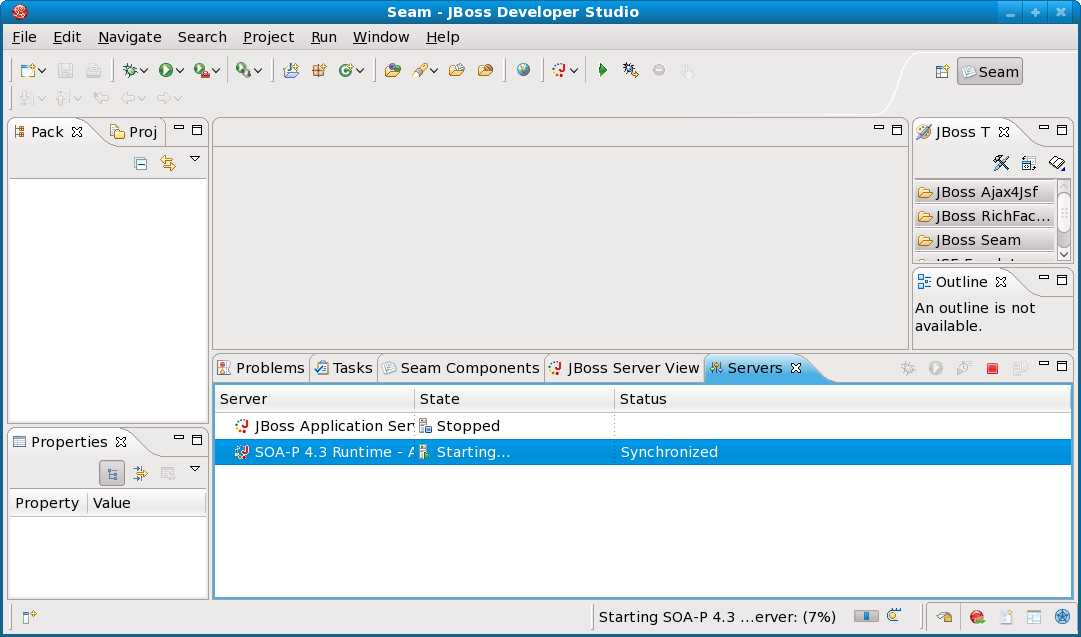
That's it! Now we can just right-click on the server and start it and/or add projects to it like we would any other server.