[JBoss Tools] - Using the RESTeasy Project Example and the WS Tester
- First Post
- Replies
- Stats
-
Go to
- ----- 2026 -----
- August
- July
- June
- May
- April
- March
- February
- January
- ----- 2025 -----
- December
- November
- October
- September
- August
- July
- June
- May
- April
- March
- February
- January
- ----- 2024 -----
- December
- November
- October
- September
- August
- July
- June
- May
- April
- March
- February
- January
- ----- 2023 -----
- December
- November
- October
- September
- August
- July
- June
- May
- April
- March
- February
- January
- ----- 2022 -----
- December
- November
- October
- September
- August
- July
- June
- May
- April
- March
- February
- January
- ----- 2021 -----
- December
- November
- October
- September
- August
- July
- June
- May
- April
- March
- February
- January
- ----- 2020 -----
- December
- November
- October
- September
- August
- July
- June
- May
- April
- March
- February
- January
- ----- 2019 -----
- December
- November
- October
- September
- August
- July
- June
- May
- April
- March
- February
- January
- ----- 2018 -----
- December
- November
- October
- September
- August
- July
- June
- May
- April
- March
- February
- January
- ----- 2017 -----
- December
- November
- October
- September
- August
- July
- June
- May
- April
- March
- February
- January
- ----- 2016 -----
- December
- November
- October
- September
- August
- July
- June
- May
- April
- March
- February
- January
- ----- 2015 -----
- December
- November
- October
- September
- August
- July
- June
- May
- April
- March
- February
- January
- ----- 2014 -----
- December
- November
- October
- September
- August
- July
- June
- May
- April
- March
- February
- January
- ----- 2013 -----
- December
- November
- October
- September
- August
- July
- June
- May
- April
- March
- February
- January
- ----- 2012 -----
- December
- November
- October
- September
- August
- July
- June
- May
- April
- March
- February
- January
- ----- 2011 -----
- December
- November
- October
- September
- August
- July
- June
- May
- April
- March
- February
- January
- ----- 2010 -----
- December
- November
- October
- September
- August
- July
- June
- May
- April
- March
- February
- January
- ----- 2009 -----
- December
- November
- October
- September
- August
- July
- June
- May
- April
- March
- February
- January
- ----- 2008 -----
- December
- November
- October
- September
- August
- July
- June
- May
- April
- March
- February
- January
- ----- 2007 -----
- December
- November
- October
- September
- August
- July
- June
- May
- April
- March
- February
- January
- ----- 2006 -----
- December
- November
- October
- September
- August
- July

Brian Fitzpatrick [http://community.jboss.org/people/bfitzpat] modified the blog post:
"Using the RESTeasy Project Example and the WS Tester"
To view the blog post, visit:
http://community.jboss.org/community/jbosstools/blog/2010/06/28/using-the...
--------------------------------------------------------------
Now that the WS Tester is getting more stable and feature complete, I wanted to try it
against a RESTeasy web service (JAX-RS) deployed against one of our own runtimes. I simply
used the steps we'd defined earlier for using the RESTeasy project example on
http://community.jboss.org/wiki/UsingtheRESTEasySimpleProjectExampleinJBDS3 this wiki
page.
To do this yourself, follow these steps:
1. Grab a recent build of JBoss Tools 3.2 (go [
http://download.jboss.org/jbosstools/builds/nightly/
http://download.jboss.org/jbosstools/builds/nightly/ and use the latest trunk build).
Install it into an Eclipse 3.6 (Helios) instance.
2. Make sure you have an EAP 5 or SOA-P 5 runtime ready with RESTeasy installed.
3. Fire up your Eclipse workbench and follow the steps
http://community.jboss.org/wiki/UsingtheRESTEasySimpleProjectExampleinJBDS3 here to get
your RESTful web service project into your workbench (steps 1 through 10).
4. Get a bit familiar with the WS Tester by checking out
http://community.jboss.org/community/jbosstools/blog/2010/05/26/testing-w... this
post and
http://community.jboss.org/community/jbosstools/blog/2010/06/04/testing-w...
this post.
5. Open the WS Tester view by selecting Window->Show View->Other... Drill down until
you find "JBoss Tools Web Services" and select the Web Service Tester.
6. To post a new customer to the service database:
* Select JAX-RS as your Web Service Type.
* Switch the HTTP Method to "POST".
* Type in your Service URL: http://localhost:8080/simple/rest-services/customers
http://localhost:8080/simple/rest-services/customers.
* Put in your sample XML in the Request Body tab:
<customer>
<first-name>Bill</first-name>
<last-name>Burke</last-name>
<street>256 Red Hat Lane</street>
<city>Boston</city>
<state>MA</state><zip>02115</zip>
<country>USA</country>
</customer>
* On the Request Header tab, add "content-type=application/xml" as the lone
header.
* Click the Invoke button.
* You won't see anything in the Response Body tab to the right, but if you go to the
Response Header, you should see "[HTTP/1.1 201 Created]" as the top line in the
list. You should also see the Location (
http://localhost:8080/simple/rest-services/customers/#
http://localhost:8080/simple/rest-services/customers/# where # is the record number for
the entry).
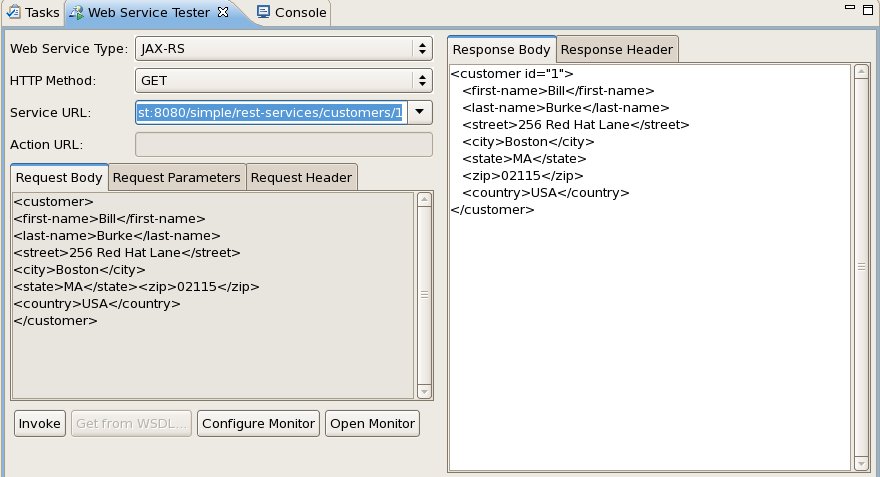
7. To retrieve a record from the service:
* Change the HTTP Method to "GET".
* Change the Service URL to the Location value you saw in step 6 (
http://localhost:8080/simple/rest-services/customers/1
http://localhost:8080/simple/rest-services/customers/1)
* Click the Invoke button.
http://community.jboss.org/servlet/JiveServlet/showImage/38-1841-3575/res...
http://community.jboss.org/servlet/JiveServlet/downloadImage/38-1841-3575...
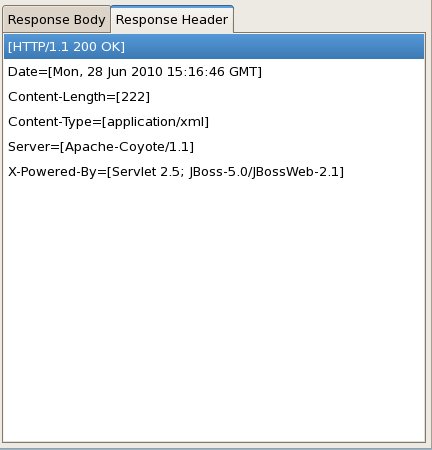
* This time you should see the XML record in the Response Body tab and [HTTP/1.1 200 OK]
as the first Response Header.
http://community.jboss.org/servlet/JiveServlet/showImage/38-1841-3576/res...
http://community.jboss.org/servlet/JiveServlet/downloadImage/38-1841-3576...
8. To update a record from the service:
* Change the HTTP Method to "PUT".
* Leave the URL the same (for the record you want to update).
* Provide the updated XML for the record:
<customer>
<first-name>Gary</first-name>
<last-name>Lamperillo</last-name>
<street>123 Red Hat Court</street>
<city>Venice</city>
<state>CA</state>
<zip>90291</zip>
<country>USA</country>
</customer>
* Click the Invoke button.
* Like when you POSTed before, you won't see anything in the Response Body, but you
should see [HTTP/1.1 204 No Content] as the first item in the Response Header list.
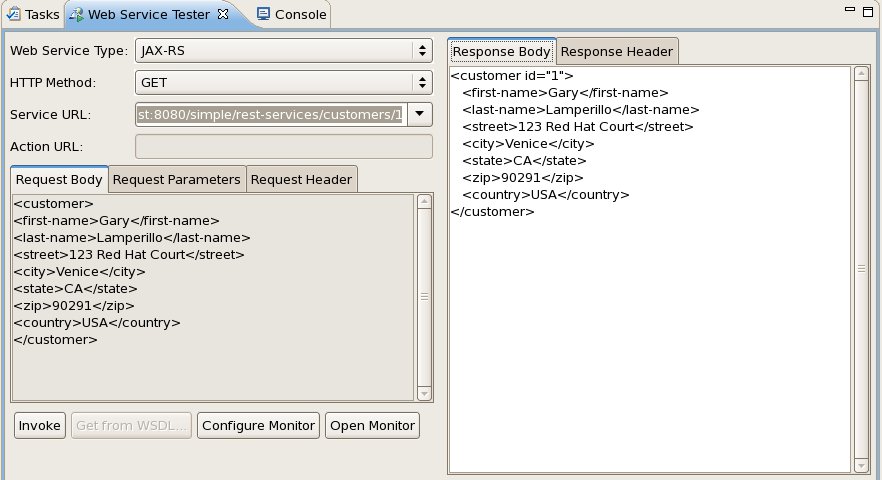
* To verify that the data went through correctly, we can do another GET - simply switch
the HTTP Method to "GET" and click Invoke again.
http://community.jboss.org/servlet/JiveServlet/showImage/38-1841-3577/res...
http://community.jboss.org/servlet/JiveServlet/downloadImage/38-1841-3577...
* Now we should see the updated data appear in the Response Body and [HTTP/1.1 200 OK] as
the first item in the Response Header list.
And that's it! Pretty easy. Didn't even have to leave Eclipse to test!
--------------------------------------------------------------
Comment by going to Community
[http://community.jboss.org/community/jbosstools/blog/2010/06/28/using-the...]



Attachments:
- attachment.html (text/html — 8.3 KB)
5892
days inactive
5892
days old
0 comments
1 participants
tags (0)
participants (1)
-
 Brian Fitzpatrick