
2:34 a.m.
Max Rydahl Andersen [http://community.jboss.org/people/maxandersen] modified the blog
post:
"How to use JBoss AS 7 Beta 2 with JBoss Tools & Developer Studio"
To view the blog post, visit:
http://community.jboss.org/community/tools/blog/2011/04/18/how-to-use-jbo...
--------------------------------------------------------------
JBoss AS 7 is still being developed on but lately file based deployment is now in place
and I thought it would be a good thing to tell you how you can use JBoss AS 7 from our
tools even before there is an optimized and fully supported server adapter for it.
It's not optimal, but at least it lets you get started.
For this blog I used http://www.jboss.org/jbossas/downloads.html JBoss AS 7 Beta 2 and
http://devstudio.jboss.com/download/ JBoss Developer Studio 4; you can use a newer version
of AS 7 (beta 3 is coming out soon) or if you have JBoss Tools 3.2.0 installed all this
works fine too from there.
Read more below.
h2. Start/Stop of AS 7
For now the best way to start/stop AS 7 when working from Eclipse is to simply start and
stop it from a command line.
*Start:*
$JBOSS_HOME/bin/standalone
*Stop:*
Press Ctrl+C in your terminal/command prompt
You can start AS 7 via Eclipse External Tools support but Stopping won't work since it
will only stop the shell script not the actual running AS 7 instance. Thus for now - use
the command line.
h2. Deployment to AS 7
If you have a standard Eclipse Web Tools Project style project then the simplest is to use
the Deploy Only server, if you have a free-form project you can also use Deploy Only
server but maybe Project Archives gives you a better workflow. I'll outline the
"Web Tools" and Project Archives approach below:
h3. Create a Deploy Only Server
The "Deploy Only" server is available in JBoss Tools & Developer Studio and
provides a server adapter that has no special knowledge about the server it is deploying
to beyond a directory location. Thus this is perfect for using with servers that does not
yet have direct support from within Eclipse.
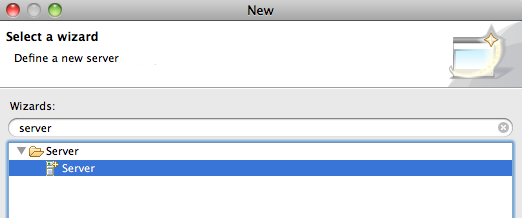
To create one you simply hit Ctrl+N or use File > New > Other from the menu and find
the Server wizard.
http://community.jboss.org/servlet/JiveServlet/showImage/38-3761-16162/de...
http://community.jboss.org/servlet/JiveServlet/downloadImage/38-3761-1616...
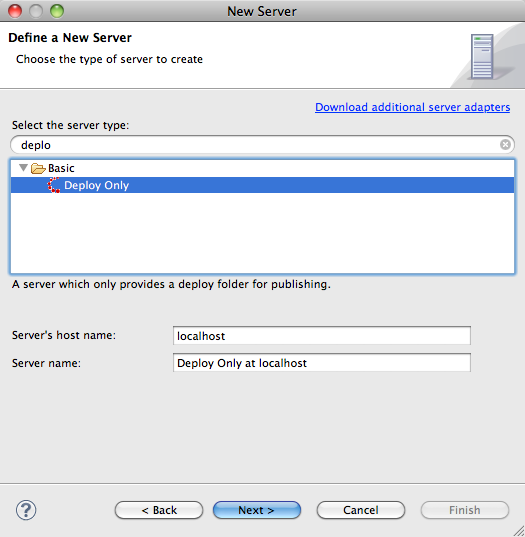
Within the Server wizard you need to find and select the "Deploy Only" server:
http://community.jboss.org/servlet/JiveServlet/showImage/38-3761-16163/ne...
http://community.jboss.org/servlet/JiveServlet/downloadImage/38-3761-1616...
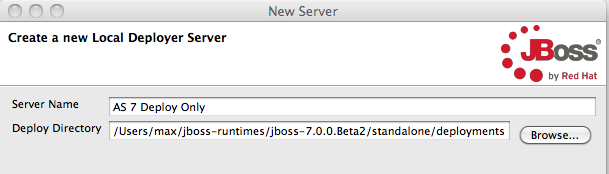
Press "Next", and then give your server a name and specify the directory
location for deployments.
http://community.jboss.org/servlet/JiveServlet/showImage/38-3761-16164/de...
http://community.jboss.org/servlet/JiveServlet/downloadImage/38-3761-1616...
For AS 7 standalone deployments goes to $JBOSS_HOME/standalone/deployments.
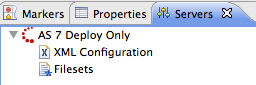
Press "Finish" and you should now have your "AS 7" server available in
the servers view:
http://community.jboss.org/servlet/JiveServlet/showImage/38-3761-16165/as...
http://community.jboss.org/servlet/JiveServlet/downloadImage/38-3761-1616...
Now you have a "Server" which you can deploy standard Web tools projects to; you
simply drag'n'drop deployable resources to the server or use the "Add and
Remove" available in the context menu.
h2. Enable Compressed Archives
There is one "gotcha" with this setup and that is that with AS 7 for exploded
deployments it now requires a .dodeploy marker to explicitly trigger a (re)deployment of
an exploded directory.
The simplest way to avoid having to set this up is to enable "Compressed
Archives" from within the tools since AS 7 will automatically deploy such archives
once they are complete.
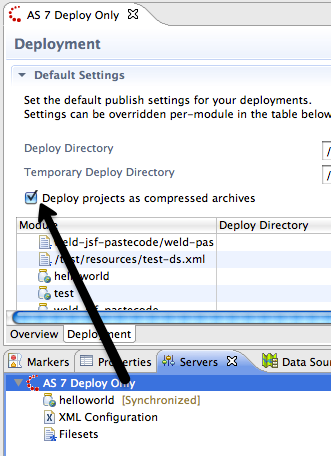
To enable this, double click the Server and it's server editor should show up.
http://community.jboss.org/servlet/JiveServlet/showImage/38-3761-16167/en...
http://community.jboss.org/servlet/JiveServlet/downloadImage/38-3761-1616...
In this editor, switch to the Deployment tab and make sure there is a checkmark for
"Deploy projects as compressed archives".
With this done you can now easily add any war/jar/ear project to the server and deploy
it.
http://community.jboss.org/servlet/JiveServlet/showImage/38-3761-16166/as...
http://community.jboss.org/servlet/JiveServlet/downloadImage/38-3761-1616...
Above I've added a project called "helloworld".
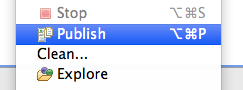
To deploy or redeploy this simply right click the server and choose "Publish"
(you can also use the keyboard shortcut shown in the menu for easier access).
http://community.jboss.org/servlet/JiveServlet/showImage/38-3761-16171/pu...
http://community.jboss.org/servlet/JiveServlet/downloadImage/38-3761-1617...
h4. Exploded and Explicit Deployments
If you really want to use exploded deployments then there is a trick you can do to
simulate the .dodeploy marker with JBoss Tools.
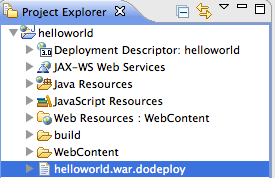
Simply create a text file in your project called "foo.war.dodeploy" where
foo.war should the name of your deployment. In my case that is
"helloworld.war.dodeploy".
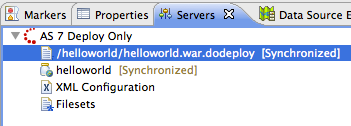
http://community.jboss.org/servlet/JiveServlet/showImage/38-3761-16168/do...
http://community.jboss.org/servlet/JiveServlet/downloadImage/38-3761-1616...
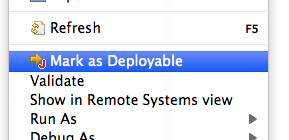
Then right click this file and choose "Mark as Deployable"
http://community.jboss.org/servlet/JiveServlet/showImage/38-3761-16169/ma...
http://community.jboss.org/servlet/JiveServlet/downloadImage/38-3761-1616...
This should then automatically get deployed to your sever (if you have multiple there will
be a dialog asking you which server to deploy to)
h3.
http://community.jboss.org/servlet/JiveServlet/showImage/38-3761-16170/do...
http://community.jboss.org/servlet/JiveServlet/downloadImage/38-3761-1617...
If you don't know what a "dodeploy marker" is look in the README.txt in
$JBOSS_HOME/standalone/deployments for an explanation.
Please note that Deploy Only server currently does not support automatic publishing thus
you have explicit invoke Publish when you are ready.
This will be fixed in upcoming release of JBoss Tools 3.2.
h3. Deploy using Project Archives
Project Archives is mostly relevant for those not using Web Tools style projects, but is
also usable for deploying to AS 7 - the feature is already documented and even with
http://docs.jboss.org/tools/movies/demos/archiving/archiving.htm a screencast in a
http://relation.to/Bloggers/FastAndIncrementalPackagingInJBossTools previous blog
h2. Please, Make this easier!
We are working on it and the first steps of an AS 7 adapter is already in JBoss Tools
trunk which will be JBoss Tools 3.3 and target Eclipse 3.7.
If you are interested in that work ask on the forums where we will keep you updated with
the progress, i.e. when there will be an updatesite to install and use from :)
--------------------------------------------------------------
Comment by going to Community
[http://community.jboss.org/community/tools/blog/2011/04/18/how-to-use-jbo...]










5608
days inactive
5608
days old
0 comments
1 participants
participants (1)
-
 Max Rydahl Andersen