3:40 a.m.
User development,
The document "Installing JBoss Tools", was updated Jan 20, 2010
by Max Andersen.
To view the document, visit:
http://community.jboss.org/docs/DOC-10044#cf
Document:
--------------------------------------------------------------
+Note: This article has been replaced by
http://www.jboss.org/tools/download/installation+
h2. How do I install JBoss Tools?
The easiest way to get started with JBoss Tools is to use JBoss Developer Studio, which
includes an installer for JBoss Tools and all its requirements. Choose one of these
versions:
* http://www.jboss.com/products/devstudio
* https://inquiries.redhat.com/go/redhat/JBDS2
If you already use Eclipse, you can install the JBoss Tools plugins into your existing
http://fedoraproject.org/wiki/Features/Eclipse34, http://www.eclipse.org/downloads/,
http://www.eclipse.org/downloads/packages/eclipse-ide-java-ee-developers/... (also
http://download.eclipse.org/technology/epp/downloads/release/ganymede/SR2/), or
http://www.eclipse.org/downloads/packages/eclipse-ide-java-and-report-dev...
using these update sites.http://www.jboss.org/tools/download or
http://download.jboss.org/jbosstools/updates/
In order to resolve all the requirements, you may need to add or enable the both of the
following other update sites within Eclipse.
* http://download.eclipse.org/releases/ganymede/
That's it!
----
h2. Advanced Installation / More Information
If you want to try out the JBoss Tools plugins for Eclipse, there are several paths you
can take to get them installed. You can either install the plugins from the JBoss Tools
http://download.jboss.org/jbosstools/updates/stable using the Eclipse
http://wiki.eclipse.org/FAQ_What_is_the_Update_Manager%3F or you can download an archive
containing all the plugins and install them into Eclipse manually. If you decide to
perform manual installation, you have a choice of either extracting the plugins directly
into your Eclipse installation or extracting them elsewhere and linking them to Eclipse.
We'll look at all three options.
Before getting our hands dirty, I first want to point one way to skip this entire page. If
you simply start with JBoss Developer Studio, you don't have to do any installation at
all. http://www.jboss.com/products/devstudio is a ready-made Eclipse package that has all
the plugins you need to develop enterprise applications with standard Java EE frameworks
(e.g., EJB, JSF, JPA) and JBoss frameworks and platforms (e.g., Seam, RichFaces, jBPM,
JBoss AS). It also comes with full support. With that said, there is no proprietary
software in JBoss Developer Studio and with a bit of diligence, you can build an
equivalent environment consisting of JBoss Tools and other third-party plugins. The
purpose of this page is to show you how to get the JBoss Tools part integrated.
h3. Prerequisites
JBoss Tools is actually an extension to an extension. At the very core you have Eclipse,
which is a general purpose IDE. In order to use JBoss Tools, you need to have the Java EE
or Java & Reporting version of Eclipse (which includes the Java Development Toolkit
(JDT), the Web Tools Platform (WTP), the Data Tools Platform (DTP), among other plugins.
You will also require Java 5.0 or later. Supported versions include Sun, IBM, BEA, and
OpenJDK.
http://wiki.eclipse.org/IRC_FAQ#I_just_installed_Eclipse_on_Linux.2C_but_....
If you're unsure if you have all required plugins, you might want to look at the build
page for the release you're downloading. For example, JBoss Tools 2.1.2.GA has a
release page over http://download.jboss.org/jbosstools/builds/release/2.1.2.GA/. On the
left side you can see all of the required drivers and their versions.
*NOTE*: If you use Eclipse Web Tools (WTP) 2.x then that version has issues with ejb
deployments. We have
http://repository.jboss.org/eclipse/webtools/patches/wtp-P-P2008050600312...
some of this described in the http://in.relation.to/8932.lace
h3. Installing JBoss Tools from the Update Site
The easiest way to get JBoss Tools installed is to point the Eclipse Update Manager at the
JBoss Tools Update Site.
| *JBoss Tools 3.0 for Eclipse 3.4 "Ganymede"
*
To use JBoss Tools with Eclipse 3.4, start Eclipse, then do the following:
1. *Help > Software Updates... > Available Software* +(tab)+ *> Manage Sites...*
+(button)+
2. Add these URLs, or, if they're already listed, make sure they're enabled
+(checked)+
** http://download.jboss.org/jbosstools/updates/nightly/trunk/
** http://download.eclipse.org/releases/ganymede/
** http://download.eclipse.org/birt/update-site/2.3/
1. Click *OK*.
2. Expand the *JBoss Tools Update Site* and select any or all of the available features
listed thereunder.
3. Click *Install...* then *Next* and/or *Finish*. Restart when prompted. |
http://community.jboss.org/servlet/JiveServlet/downloadImage/102-10044-53...
|
| %1,2% *Troubleshooting*
If you get errors about invalid jars or missing dependencies such as this one, try again.
You may have hit a faulty mirror.
!MESSAGE Unable to satisfy dependency from org.eclipse.birt.report.viewer
2.2.1.r22x_v20070920 to requiredCapability:
osgi.bundle/org.eclipse.tomcat/[4.1.130,5.0.0).
[Fatal Error] :18432:325: Premature end of file. |
*JBoss Tools 2.1.2.GA for Eclipse 3.3.2 "Europa"
*
To use JBoss Tools with Eclipse 3.3, start Eclipse, then do the following:
1. *Help > Software Updates > Find and Install... > Search for new features to
install* +(radio button)+ > *Next
*
2. *New Remote Site...* (button)
3. Enter this information:
*Name:* JBoss Tools Update Site
*URL:* http://download.jboss.org/jbosstools/updates/stable
4. Click *Finish*
5. When the search completes, check the option +JBoss Tools Stable Updates+ and advance
through the rest of the wizard
6. Go get coffee while the plugins download
7. Click *Install All* when the download completes. Accept the licenses and restart
Eclipse when prompted.
You should now be able to use all of the features offered by JBoss Tools. When new
releases of JBoss Tools are available, you can upgrade to them using the same process. You
can configure Automatic Updates in *Window > Preferences* if you want to be notified of
new updates or have Eclipse automatically install the updates.
The downside to using the Update Manager is that it is difficult to script (if you have to
perform lots of installs) and it fuses the plugins into your Eclipse installation and
configuration, making it difficult to switch between different versions of the plugins
(for testing and evaluation purposes). By performing a manual install you can work around
these two shortcomings.
h3. Installing JBoss Tools manually
Instead of using the Update Manager, you can download the archive of the JBoss Tools
plugins and incorporate them into your Eclipse installation manually. Before you do
anything, you need to obtain a JBoss Tools release.
h4. Obtaining a JBoss Tools release
The latest release of JBoss Tools can be found on the
http://www.jboss.org/tools/download/index.html. You are looking for either the stable or
development version of the All Plugins download for your OS. Once the download completes,
you need to decide what type of installation you are going to use before extracting it.
You can either install it directly into your Eclipse installation or you can link the
plugins to your Eclipse installation. Let's look at each option.
h4. Installing the plugins directly into your Eclipse installation
You can mimic the behavior of the Update Manager by installing the JBoss Tools plugins
directly into your Eclipse installation. The directory structure inside the archive is as
follows:
eclipse/
features/
plugins/
If you are using the commandline and your Eclipse installation directory is named
"eclipse", navigate to the directory above your Eclipse installation and extract
the archive using the unzip command.
unzip JBossTools-2.1.2.GA-ALL-linux-gtk.zip
If you prefer to extract using an archive manager or your Eclipse installation directory
is not named "eclipse", extract the features and plugins folders in the archive
into your Eclipse installation. The idea is to overlay the contents of the JBoss Tools
archive onto your Eclipse installation.
h4. Linking the plugins to your Eclipse installation
If you prefer not to pollute your Eclipse installation with third party plugins, a better
management option is to externalize these addons. Eclipse has long supported a feature
known as "links" which allows you to associate any directory that follows the
standard Eclipse structure, and which contains additional features and plugins, with your
Eclipse installation. Eclipse effectively performs a runtime merge of the available
features and plugins in these directories.
*NOTE:* The links feature just described became the dropins feature in Eclipse 3.4.
Here's how to "link" the JBoss Tools plugins to your Eclipse installation.
1. Extract the JBoss Tools release anywhere outside of your Eclipse installation. Be sure
to preserve the directory structure of the archive (i.e. the extracted folder should be
named "eclipse" and contain a "features" and "plugins"
directory). It's convenient to put this eclipse folder inside of a directory with the
name of the plugin (i.e., /home/max/eclipse-addons/jbosstools)
2. Create the file jbosstools.link in the links folder (Eclipse < 3.4) or dropins
folder (Eclipse >= 3.4) of your Eclipse installation
3. The contents of jbosstools.link should consist of a single line that defines the path
where you extracted the JBoss Tools plugins (i.e. the location of the "eclipse"
directory)
path=/home/max/eclipse-addons/jbosstools
The links or dropins folder can contain any number of .link files that point to Eclipse
extension directories.
h4. Refreshing the plugin cache
Unlike with the Update Manager, Eclipse doesn't know when you install a new set of
plugins manually (regardless of whether you extracted them directly into your Eclipse
plugin or used the links/dropins feature). Therefore, when you start Eclipse the next
time, you need to instruct it to clean out its plugin cache so that it discovers the new
plugins (and flushes plugins which have been removed).
eclipse -clean
The main shortcoming of the manual installation is that you have to download and extract
the entire JBoss Tools release each time there is an update. The Update Manager, on the
other hand, can just download the pieces of JBoss Tools that actually changed, not to
mention the fact that the Update Manager can be set to perform updates automatically or
simply notify you when they are ready. Decide for yourself which approach works best for
you. However, I expect that developers are likely going to find the links/dropins feature
most useful.
h3. JBoss Tools standalone plugins
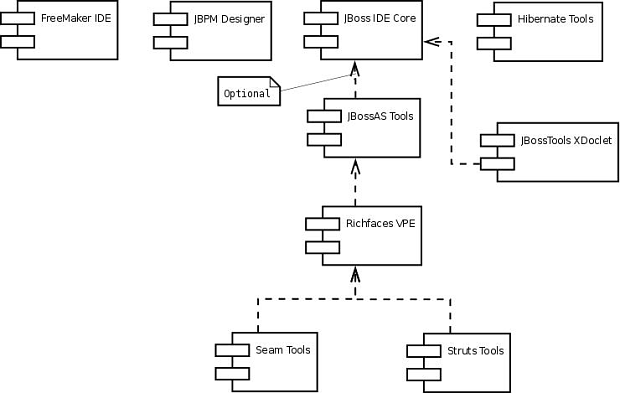
JBoss Tools is a suite of plugins for Eclipse. This diagram shows the plugins that
comprise JBoss Tools and how they are related with one another (click to expand).
http://community.jboss.org/servlet/JiveServlet/showImage/102-10044-58-103...
It's possible to install the plugins in the JBoss Tools suite as standalone plugins.
However, there are dependencies between plugins that you must satisify. These dependencies
are shown in the diagram above. The archives for each standalone plugin are available on
the JBoss Tools download page.
--------------------------------------------------------------