[JBoss Tools] Document updated/added: "Jboss Tools / JBDS Demos"
by Max Andersen
User development,
The document "Jboss Tools / JBDS Demos", was updated Jan 20, 2010
by Max Andersen.
To view the document, visit:
http://community.jboss.org/docs/DOC-14322#cf
Document:
--------------------------------------------------------------
* When making a demo, in its setting choose the necessary *jboss preloaders* and our standard palette and save the movie with this settings, before committing it to svn.
* When making a demo, first of all *set 0,20 sec.* for all frames and then adjust the time you need for some particular frames.
* When it’s necessary to draw *user attention* to some particular element on a frame, use red ellipse (for small elements – tabs, buttons, etc.) or rectangle (for file lists, windows, etc.)
* When a demo is done, watch it yourself and make sure that you have *enough time to read* text in hints.
* When making a demo, make sure that you chose the *appropriate size for hint boxes*: not lot’s of empty space should be under the text and the box should look like all other ones, undamaged, ‘cause when you try to minimize it, it could change its form unproportionally, try to avoid such an effect, minimize the box till its form (not size) remains the same.
* When making movie, make sure your *Wink uses* the elements from here, copy it to you wink folders.
https://svn.jboss.org/repos/jbosstools/documentation/trunk/movies/common_...
* When creating a new movie please *use the style features* located here - https://svn.jboss.org/repos/jbosstools/documentation/trunk/movies/common_...
* When creating demos make sure that you use correct *jboss.org styles*, time capture rate is more or equal 4, and the cursor is moving smoothly on the screen
* When making a demo, make sure that all application forms, hints, windows are *not cut* with demo frame.
e.g. the hit is cut
http://www.jboss.org/community/servlet/JiveServlet/downloadImage/102-1425...
--------------------------------------------------------------
16 years, 7 months
[JBoss Tools] Document updated/added: "JBossToolsCodingGuidelines"
by Max Andersen
User development,
The document "JBossToolsCodingGuidelines", was updated Jan 20, 2010
by Max Andersen.
To view the document, visit:
http://community.jboss.org/docs/DOC-12852#cf
Document:
--------------------------------------------------------------
h1. NB: This document is a *draft*!
*
#NB_This_document_is_a_draft
**
#General_guidelines
**
#Internationalisation_aspects
*
#NB_This_document_is_a_draft_379786
h2. General guidelines
TBD
h2. Internationalisation aspects
1. *If possible, avoid static text in images*. If you need text in an image, it's best to draw it on top at runtime. That way, we can pull in translated text.
2. *Mark NON-TRANSLATABLE strings in .properties files.* If some of the strings in a .properties file aren't meant to be translated (eg an HTML template, the text of a license agreement, or a configuration item to hold a port number), adding NON-TRANSLATABLE comments will ensure that the string/strings aren't sent off for translation.
For example:
# START NON-TRANSLATABLE
def_sc_js_html_content=<script type\="text/javascript">\n\t\n</script>
# END NON-TRANSLATABLE
If you have a whole block of non-translatable properties (or an entire file), you can just put # START NON-TRANSLATABLE before the first, and # END NON-TRANSLATABLE after the last. (And yes, you can nest NON-TRANSLATABLE blocks if you really want to.)
http://wiki.eclipse.org/Eclipse_Globalization_Guidelines#Non-translatable...
3. *Delete messages which become obsolete.* When removing code which has (or might contain) externalised strings, please check whether you can delete the strings from the relevant properties files. This will save translators from translating text which will never be used!
4. *Avoid concatenating externalised strings.* For instance:
messages.properties:
InvalidFilename1=The filename '
InvalidFilename2=' is not valid.
MyClass.java:
setMessage(Messages.InvalidFilename1 + filename +
Messages.InvalidFilename2);
I'm not a translator, but I understand it's not possible to translate two half-sentences, jam them together with a variable in between, and have the result mean anything useful in most languages. Unless the two languages have the same word-order (eg English -> Pig Latin) the *sentence will break*.
Instead, use a single string, passed though MessageFormat like this:
messages.properties:
InvalidFilename=The filename ''{0}'' is not valid.
MyClass.java:
setMessage(MessageFormat.format(Messages.InvalidFilename, fileName));
(Note that MessageFormat requires single quotes (apostrophes) to be repeated.)
h1. NB: This document is a *draft*!
--------------------------------------------------------------
16 years, 7 months
[JBoss Tools] Document updated/added: "JBossTools 3.x/4 Seam Refactoring"
by Max Andersen
User development,
The document "JBossTools 3.x/4 Seam Refactoring", was updated Jan 20, 2010
by Max Andersen.
To view the document, visit:
http://community.jboss.org/docs/DOC-13479#cf
Document:
--------------------------------------------------------------
See https://jira.jboss.org/jira/browse/JBIDE-1077.
Seam Refactoring Scenarios:
*1.* *Renaming a Seam component in *.java*
Java Editor Pop-up menu -> Seam Refactor -> Rename Seam Component.
Then a standart Eclipse refactoring wizard is opend. We can see all previews and disable/enable particular changes there. This wizard shows references to this components to be affected:
* @Name("<newName>") in Seam component .java sorce
* <component name="<newName>" .../> in components.xml
* EL in *.java strings, *.jsp, *.xhtml, *.xml, *.properties. +E.g. #{<oldName>.property} -> #{<newName>.property}+.
* @In. +E.g. @In SomeClass <oldName> -> @In SomeClass <newName>; @In("<oldName>") SomeClass field -> @In("<newName>") SomeClass field.+
In case of using a field/method name as context variable name (@In SomeClass someVariable) we should use JDT refactoring to rename the field/method name+. E.g. @In SomeClass <oldName>; ... <oldName>.getItem();... ->+ +@In SomeClass <newName>; ... <newName>.getItem();...+
* @Factory. I think we should suggest to rename factories for context variables with the same name. +E.g. @Factory("<oldName>") -> @Factory("<newName>"); @Factory public Item get<oldName>() {..} -> @Factory public Item get<newName>() {..}+
* Factory name in components.xml. +E.g. <factory name="<oldName>" /> -> <factory name="<newName>" />+
* property names in seam.properties. +E.g. <oldName>.property1 = ... -> <newName>.property1 = ...+
*2. Renaming a Seam component in components view*
Seam Components View -> Pop-up menu for a component.
Then we open the same wizard which we use in *1.*
*3. Renaming a Seam component in components.xml*
Components.xml editor -> Pop-up menu for <component> element.
Then we open the same wizard which we use in *1.*
*4. Renaming a Seam context variable in EL*
It should work in java, xml, jsp, xhtml and property editors for files in Seam projects
When user select Seam context variable in EL Pop-up menu -> Seam Refactor -> Rename Seam Context Variable appears
When user select this munu item we open the similar wizard which we use in *1.*
* Renaming a Seam component
same as in *1.*
* Renaming a Factory
** rename declarations of factory
** rename references in java annotations and EL
* Renaming a Out/DataModel
** rename annotations
** rename references in java annotations and EL
*5. Renaming a properties of* *Seam* *context variable in EL*
* TBD
*6. Renaming a Seam context variable in @In*
* TBD
--------------------------------------------------------------
16 years, 7 months
[JBoss Tools] Document updated/added: "JBossTools 3.x/4 Seam Validation Error Quck Fixes"
by Max Andersen
User development,
The document "JBossTools 3.x/4 Seam Validation Error Quck Fixes", was updated Jan 20, 2010
by Max Andersen.
To view the document, visit:
http://community.jboss.org/docs/DOC-13477#cf
Document:
--------------------------------------------------------------
* Duplicate Component Name
** Remove Component - shows components with duplicated names and their locations in sources, provides a way to select components to remove (remove operation should allow to choose a way to remove component: remove @name annotation, remove component source ( java source, xml tag in components.xml, etc);
** Rename Component - shows components with duplicated names and allow to select component for remaning, then starts refactoring for selected component. If components has references it is possible to select what references should be updated during renaming;
** Change severity lavel for marker
* Stateful Component does not contain @Remove method
** Remove @Stateful annotation from component and all related annotations like @Destroy
** Select @Remove method
** Create @Remove method
** Change severity lavel for marker
* Stateful Component does not have @Destroy method
** Remove @Stateful annotation from component and all related annotations like @Remove
** Select @Destroy method
** Create @Destroy method
** Change severity lavel for marker
* Statefull Component has wrong scope
** Remove @Stateful annotation from component and all related annotations like @Remove
** Define Component Scope - it inserts scope annotation and shows content assist for available scopes
--------------------------------------------------------------
16 years, 7 months
[JBoss Tools] Document updated/added: "JbtUpgradeTo3x"
by Max Andersen
User development,
The document "JbtUpgradeTo3x", was updated Jan 20, 2010
by Max Andersen.
To view the document, visit:
http://community.jboss.org/docs/DOC-11195#cf
Document:
--------------------------------------------------------------
This wiki list the user visible requirement/configuration changes in JBoss Tools that requries attention when updating to JBoss Tools 3 from JBoss Tools 2.
h2. JBoss Tools 3.0.alpha
h3. Eclipse requirements
JBoss Tools 3 targets Eclipse 3.4/Ganymede and thus Eclipse 3.3 is not supported anymore.
h3. Legacy/deprecated plugins removed
Some plugins (TODO: list them) were removed thus it is recommended to install JBoss Tools 3 in a fresh eclipse or at least remove all JBoss Tools 2 plugins to avoid Eclipse loading the old plugins.
h3. Removed Plugins
The following three plugins were removed.
> org.jboss.ide.eclipse.firstrun
> org.jboss.ide.eclipse.jdt.j2ee.core
> org.jboss.ide.eclipse.jdt.j2ee.ui
jdt.j2ee. provided classpath containers for J2EE 1.3 and 1.4 libraries. Their functionality has been moved to the org.jboss.ide.eclipse.as.classpath.core plugin and projects should require no change at all. firstrun provided an API to allow us to throw up messages upon a workspaces first run after an upgrade. This was no longer in use and was removed.
--------------------------------------------------------------
16 years, 7 months
[JBoss Tools] Document updated/added: "JBossIDEArchitecture"
by Max Andersen
User development,
The document "JBossIDEArchitecture", was updated Jan 20, 2010
by Max Andersen.
To view the document, visit:
http://community.jboss.org/docs/DOC-10405#cf
Document:
--------------------------------------------------------------
h2. JBoss-IDE Architecture
JBoss-IDE is split into small modular units.
h3. Map
The current plugin map is (release 1.3.x) :
|| Plugin || Component || Decription ||
| org.jboss.ide.eclipse.core | JBoss general constructs | Generic classes and constructs |
| org.jboss.ide.eclipse.ui | JBoss general UI constructs | Generic classes and constructs for UI design |
| org.jboss.ide.eclipse.deployer.core | JBoss Deployer Core | Allow to deploy archive and/or folder to JBoss |
| org.jboss.ide.eclipse.deployer.ui | JBoss Deployer UI | Allow to configure the deployment to Jboss |
| org.jboss.ide.eclipse.jdt.core | JBoss Development Tools constructs | Generic classes and constructs |
| org.jboss.ide.eclipse.jdt.ui | JBoss Development Tools UI constructs | Generic classes and constructs for UI design |
| org.jboss.ide.eclipse.jdt.j2ee.core | JBoss Development Tools for J2EE constructs | Generic classes and constructs |
| org.jboss.ide.eclipse.jdt.j2ee.ui | JBoss Development Tools for J2EE UI constructs | Generic classes and constructs for UI design |
| org.jboss.ide.eclipse.jdt.test.core | JBoss Development Tools for testing constructs | Generic classes and constructs |
| org.jboss.ide.eclipse.jdt.test.ui | JBoss Development Tools for testing UI constructs | Generic classes and constructs for UI design |
| org.jboss.ide.eclipse.jdt.ws.core | JBoss Development Tools for WebServices constructs | Generic classes and constructs |
| org.jboss.ide.eclipse.jdt.ws.ui | JBoss Development Tools for WebServices UI constructs | Generic classes and constructs for UI design |
| org.jboss.ide.eclipse.launcher.core | JBoss Launcher Core | Allow to launch JBoss in/out Eclipse |
| org.jboss.ide.eclipse.launcher.ui | JBoss Launcher UI | Allow to configure the launching of JBoss |
| org.jboss.ide.eclipse.packaging.core | JBoss Packaging Core | Allow to package archive and/or folder |
| org.jboss.ide.eclipse.packaging.ui | JBoss Packaging UI | Allow to configure the packaging |
| org.jboss.ide.eclipse.xdoclet.assist | XDoclet code assist | Code assistance for XDoclet tags |
| org.jboss.ide.eclipse.xdoclet.core | XDoclet library management | Manage the XDoclet various jars |
| org.jboss.ide.eclipse.xdoclet.help | XDoclet plugins help | XDoclet plugins help and how-to |
| org.jboss.ide.eclipse.xdoclet.run | XDoclet generation | XDoclet generation per project configuration |
| org.jboss.ide.eclipse.xdoclet.ui | XDoclet UI for icons | XDoclet icons (all UI will be moved here later) |
Each main functionality is split into two or more plugins. It follows the implicit convention of the Eclipse plugins, which tends to isolate UI from Core functionalities. For example, the *org.jboss.ide.eclipse.packaging.core* plugin contains the model and all persistence classes, and the *org.jboss.ide.eclipse.packaging.ui* plugin contains all the dialogs and panels needed to interact with the packager. This rule of separation is to be enforced to keep the structure clear.
h3. Proposal Map
This map is related to the http://community.jboss.org/docs/DOC-10414 :
|| Plugin || Component || Decription ||
| org.jboss.ide.eclipse.jdt.aop.core | JBoss Development Tools for JBoss-AOP constructs | Generic classes and constructs |
| org.jboss.ide.eclipse.jdt.aop.ui | JBoss Development Tools for JBoss-AOP UI constructs | Generic classes and constructs for UI design |
| org.jboss.ide.eclipse.jdt.debug.core | JBoss Development Tools for debugging constructs | Generic classes and constructs |
| org.jboss.ide.eclipse.jdt.debug.ui | JBoss Development Tools for debugging UI constructs | Generic classes and constructs for UI design |
--------------------------------------------------------------
16 years, 7 months
[JBoss Tools] Document updated/added: "ESB Action View"
by Max Andersen
User development,
The document "ESB Action View", was updated Jan 20, 2010
by Max Andersen.
To view the document, visit:
http://community.jboss.org/docs/DOC-12950#cf
Document:
--------------------------------------------------------------
*Overview*
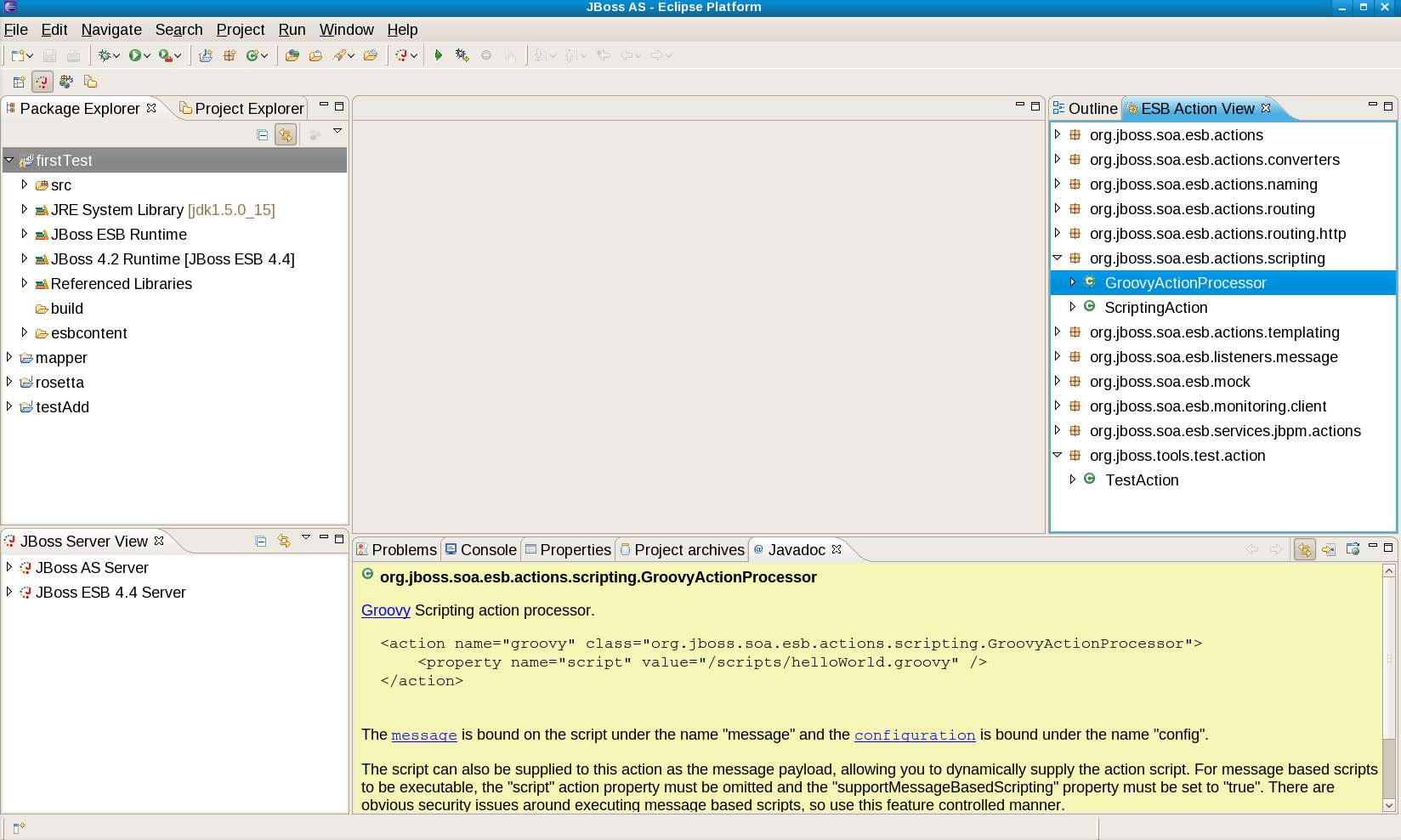
The ESB Action View is an Eclipse plug-in that shows ESB actions found on a project's classpath. These actions are grouped by Java package, and the view works with the Eclipse Java Development Tools (JDT) to show JavaDoc and open associated source code. This view is shown below:
http://community.jboss.org/servlet/JiveServlet/showImage/102-12950-9-1070...
The ESB Action View appears on the right-hand side of the workbench. For the selected project ("firstTest"), the ESB built-in action "GroovyActionProcessor" is selected, and its JavaDoc appears in the JavaDoc view on the bottom. Notice also that user-defined actions (here "TestAction" shown at the bottom of the ESB Action View) also appear.
*Motivation*
Why is this view interesting? While is it certainly true that you can get the same information directly from the Eclipse Java Package Explorer view (shown on the left-hand side of the workbench), the ESB actions contained therein are scattered across jar files, and you have to search for them yourself. The ESB Action View takes care of this search, and presents the ESB actions in an easy format for learning and using.
Further, the ESB Action View is associated with the Graphical Service Designer (https://jira.jboss.org/jira/browse/JBIDE-2068). Since the main feature of the Graphical Service Designer is the ability to diagram ESB action chains, we will need something like the ESB Action View as a design palette.
*Installation and Usage*
The ESB Action View is available in JBoss Tools SVN at:
http://anonsvn.jboss.org/repos/jbosstools/workspace/jgraham/plugins
and was built using the http://www.eclipse.org/downloads/packages/eclipse-ide-java-ee-developers/.... I've also installed the latest build of http://www.jboss.org/tools/. Finally, since we've interested in JBoss ESB development, we'll also need the http://www.jboss.org/jbossesb/ I used JBESB 4.4GA for development, though other versions (including SOA-P) should be fine.
Once you have these installed, the next step is to create a Java project with the ESB jars on the classpath. The easiest way to do this (and to deploy directly to the ESB) is to use the ESB project wizard in JBT 3. Whichever way you configure the classpath for the JBoss ESB jars, then next thing you'll want to do is associate the JavaDoc (otherwise the JavaDoc view will complain that no JavaDoc is found). For example, here is the Eclipse classpath container for my installation of JBESB (which I've cleverly named "JBoss ESB Runtime"):
http://www.jboss.org/community/servlet/JiveServlet/downloadImage/1071/esb...
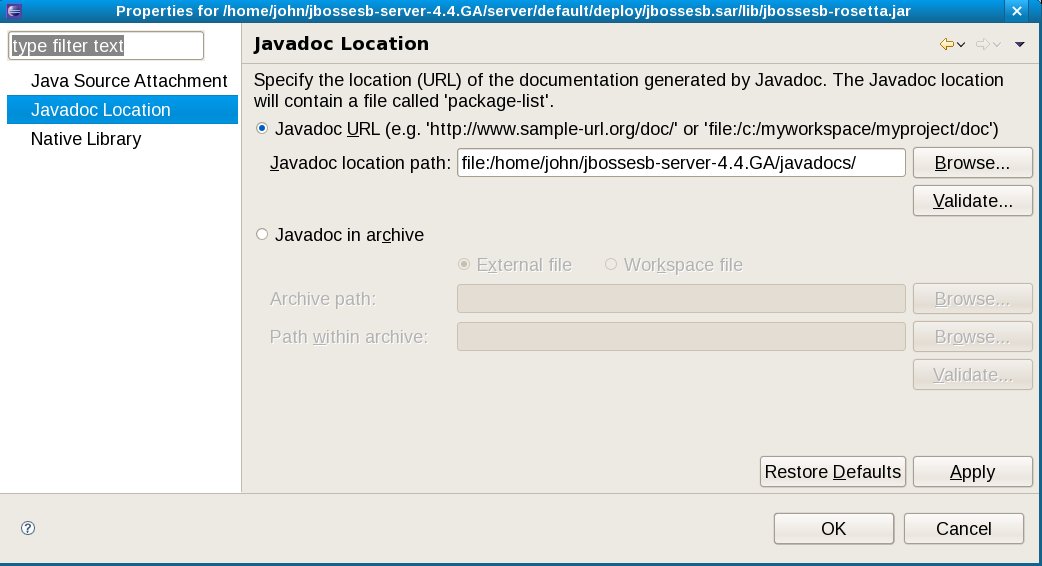
Since most of the ESB actions we're interested in are located in jbossesb-rosetta.jar, I've located that jar in the JBoss ESB Runtime classpath folder, right clicked, selected "Properties," and set the JavaDoc location to that supplied with the JBESB install:
http://community.jboss.org/servlet/JiveServlet/showImage/102-12950-9-1072...
In theory you should also do the same for the source files (so Eclipse can open the Java source directly from the ESB Action View), but see below for a problem....
*Note:* If you can just attach source, then you do not have to attach the JavaDoc separately, as Eclipse will extract any JavaDoc from the provided source files.
*Known Issues*
As a proof of concept and not a product-ready component, there currently are a number of limitations to be aware of in the ESB Action View:
* Source code attachments: In theory you can point to a source code archive or directory and JDT knows how to open source from there based on selected class files. I can't seem to make this work at the moment, so if anyone has some success, please let me know! Note that this mechanism is standard JDT -- the ESB Action View does nothing special here -- so if you can make it work with regular Eclipse JDT components, it should also work straight away with the ESB Action View.
*Update, February 5, 2009:* This turns out to be a bug in how source code attachments are handled in JBT/JBDS. See https://jira.jboss.org/jira/browse/JBIDE-3733 for details.
* Transitive classpaths: The ESB Action View currently does not take into account referenced projects (which could supply additional ESB actions). There is no technical problem with doing this, it's just not implemented in the current version.
* There's some stupid code ignoring re-initialization exceptions thrown if the ESB Action View is closed and then re-opened in the same instance of the Eclipse workbench. Interestingly, these exceptions don't prevent the view from working correctly, so I've just coded around them for the moment. Obviously it would be nice to figure out and correct what is actually wrong here.
*Lesson Learned*
Part of the reason for "executable comments" is to try out ideas and see how they actually work in code. During the process of creating the ESB Action View, a number of items emerged:
* We'll need some way of distributing the JBESB JavaDoc and source code in a form that can be consumed by the tools. Currently (I believe) only the community edition comes with JavaDoc, and neither the community editor nor product come with source archives.
* It would be useful to have the server runtime tools in JBT attach JavaDoc and source code (like the JRE configurations in Eclipse do), so different versions of the ESB runtime can be supported by reference to the classpath container given for a project.
* Likewise, it would be useful to configure JBESB configuration descriptors (like jboss-esb.xsd) from a known location in the runtime definition, so tools can dynamically drive configuration based on version-specific requirements.
https://www.jboss.org/community/docs/DOC-12949
--------------------------------------------------------------
16 years, 7 months
[JBoss Tools] Document updated/added: "JBossIDEJBossASAdapterBasedOnWTP1.5AndEclipse3.2"
by Max Andersen
User development,
The document "JBossIDEJBossASAdapterBasedOnWTP1.5AndEclipse3.2", was updated Jan 20, 2010
by Max Andersen.
To view the document, visit:
http://community.jboss.org/docs/DOC-10412#cf
Document:
--------------------------------------------------------------
h2. JbossAS adapter based on WTP1.5 for Eclipse 3.2
Yesterday I've read about http://labs.jboss.com/portal/index.html?ctrl:id=page.default.blog&project... news entry and couldn't wait to see this myself. So I pulled it from CVS, played around and got it to work.
-
----
h3. Compile from source
* download http://wiki.jboss.org/wiki/attach?page=JBossIDE%2FJbossAs-Eclipse-Adapter... and import it into a new workspace via File->Import->Team->Team Project Set
* login to CVS via anonymous and no password
* source is automatically pulled
* go to the project "org.jboss.ide.eclipse.as.feature" and right click on feature.xml and select PDE Tools->Create Ant Build File
* right click on the generated build.xml and select Run As->Ant Build...
* select additionally to build.update.jar, clean and zip.distribution(and correct the build order: first clean, second build.update.jar, third zip.distribution
* click Run
* extract the resulting zip into your Eclipse3.2 installation directory
* play around, find bugs and file many JIRA issues that we get that asap stable
--------------------------------------------------------------
16 years, 7 months