[JBoss Tools] Document updated/added: "JBossToolsTroubleShootingFAQ"
by Max Andersen
User development,
The document "JBossToolsTroubleShootingFAQ", was updated Jan 20, 2010
by Max Andersen.
To view the document, visit:
http://community.jboss.org/docs/DOC-10801#cf
Document:
--------------------------------------------------------------
h2. JBoss Tools Trouble Shooting FAQ
h3. Read this before adding an entry
This FAQ is intended to provide information on JBoss Tools (and Eclipse in general) trouble shooting.
-
----
*Q : The plugins does not seem to be loaded or active after installation*
*A* : This can unfortunately happen if either some steps in the installation failed, Eclipse is somehow misconfigured or there are some conflicting plugins installed.
To find out why plugins are not being loaded try and start eclipse with the -debug flag on the command line. Now Eclipse will log what plugins/bundles are not being loaded. You can open the "Error Log View" or look directly in .metadata/log for the information.
-
----
*Q : Eclipse is running out of memory OR Eclipse is running very slow!*
*A* : Eclipse default setup is to use 64mb of memory and that works ok for small number of projects; but if you have more projects and/or using many plugins Eclipse would like to use more memory and hence its behavior will be slower operations (because of too much garbage collection or simply halting because it runs out of memory).
The solution is to start eclipse with a set of flags to allow it to allocate more memory:
eclipse -vmargs -Xmx1024m -XX:MaxPermSize=128m
The above will allow it to use up to 1Gb of memory (you can of course lower it if you want, but this is what I use and finally it will also increase the MaxPermSize so classloading is given more room.
-
----
*Q: My deployment need to be present when starting up the server, but it looks like my .sar archives are only deployed after the server is running. How do I make sure the server sees it while starting up ?*
This is probably because the server adapter is deploying into a metadata location in the workspace and that metadata location is only added as a deployable location via JMX after bootup.
You can still make your server deploy to a specific location inside the automatically-added location (aka the deploy folder) by opening the Server Editor (double-click the server) and changing the preferences there.
Note: 90% of deployments don't need this but some others do, like some .sar deployments.
--------------------------------------------------------------
16 years, 5 months
[JBoss Tools] Document updated/added: "JBoss Tools 3.x/4 Road map"
by Max Andersen
User development,
The document "JBoss Tools 3.x/4 Road map", was updated Jan 20, 2010
by Max Andersen.
To view the document, visit:
http://community.jboss.org/docs/DOC-13326#cf
Document:
--------------------------------------------------------------
This document is a work in progress! Intended to be discussed at JBoss Tools meeting at EclipseCon '09
h1. JBoss Tools 3
The roadmap for 3.0 can be found http://community.jboss.org/docs/DOC-10800
h1. JBoss Tools 3.1
Not sure if we will ever do a 3.1 based on Ganymede, but if we do these are the important parts:
maven/m2eclipse integration for Seam and ESB projects
Simple linking between Drools and jBPM, ESB
h1. JBoss Tools 3.5/4 (?)
h2. Build/Release:
Built on Galileo
Signing of jars
Deconstruct the monolithic build to get speedier component builds and simpler integration builds.
Cleanup of dependencies and manifest.mf to be p2 friendly
h2. "Web 2.0":
h2. JBoss AS:
JBoss 5.0.1/5.1 integration (use profile service or other ?)
Better out-of-the-box experience with AS install (i.e. JMX authentication is not enabled by default)
h2. Project Archives:
"Real" incremental packaging (being able to stop builds while collecting/copying large files)
h2. Seam/WebBeans:
+*WebBeans wizards*+ for main artifacts introduced in WebBeans (http://community.jboss.org/docs/DOC-13478)
*Q:* is it possible for WebBeans tooling to have as little dependencies on XModel as possible to make it reusable for others ?
Seam 3 seam-gen support, i.e. Maven and shared templates
*A:* It is possible, after RichFaces component is spitted to several reusable components (here is rough suggestion): Knowledge base, Forms, XModel, Text Extensions and etc.
*Q:* Should WebBeans Tools support different implementation of WebBeans Spec?
*+Seam Refactoring+* support for component renaming on @name annotation in Java source editor (http://community.jboss.org/docs/DOC-13479). Tentative list of usecases is:
1. component renaming on @name annotation in Java source editor;
2. bijections renaming;
3. renaming in EL expressions in various sources: xhtml, jsp, java
+*Seam Problems Quick Fixes*+ - support Quick Fixes for Seam Error Markers created for sources and project settings. It should be QF definitions for all Seam Error Markers (http://community.jboss.org/docs/DOC-13477).
... All 25 markers from Seam/Validation preferences should be defined here ...
h2. XModel:
Look into memory consumption (XModel uses 16%+ of all memory)
Look into making XModel non-monolithic (Example: I should not have to see JSP, JSF etc. model artifacts when wanting to bundle the Hibernate xml editor)
Look into XModel integration with eclipse now if you look through XModel code you can see that XModel:
1. uses its own extension mechanism instead using eclipse extension (see https://svn.jboss.org/repos/jbosstools/trunk/common/plugins/org.jboss.too...).
2. uses its own content recognition for xml files and trying to replace eclipse conent types->editor mapping (see https://svn.jboss.org/repos/jbosstools/trunk/common/plugins/org.jboss.too... and https://svn.jboss.org/repos/jbosstools/trunk/common/plugins/org.jboss.too...)
Disclose and refactor XModel lifecycle:creating, loading, updating, saving etc. Now in rare cases XModel instance is loading different ways and results could be unpredictable. It collects information using separate threads, it needs review.
h2. Hibernate:
Usability improvements - generate code directly from DTP browser
Hibernate projects (most likely via Maven artifacts - no need for us to invent something else is there ?)
JPA 2 is coming out - anything we need to considere there ?
Hibernate 3.3/3.4/3.5/4 support - more seperation from hibernate core ?
h2. Maven:
Avoid hard coupling to m2eclipse for all plugins, should be done as "add-on"/integration (to be able to distribute JBoss Tools plugins without 3rd party dependency)
Seam projects primary usecase, but also ESB and others
h2. JSF:
JSF 2 is coming
RichFaces 4.0 (I would think this should be coupled with JSF 2)
Proper coupled/decoupled models for JSF and Seam so we don't have 2 for the same thing (EL, completions, navigation etc.)
h2. VPE:
Separate Richfaces and VPE Core to allow install VPE based editors without richfaces. Example is Docbook Viewer (see https://jira.jboss.org/jira/browse/JBIDE-3816)
Move to xulrunner 1.9 (see https://jira.jboss.org/jira/browse/JBIDE-2248)
Try to use mock object to generate templates for new components
Micro templates (something like attr->visual element, text->visual element, see https://jira.jboss.org/jira/browse/JBIDE-2663
Css class dialog improvements (see https://jira.jboss.org/jira/browse/JBIDE-3445)
Templates improvements:
* support for CDATA section processing (see https://jira.jboss.org/jira/browse/JBIDE-2519)
* support of custom facelets tags (https://jira.jboss.org/jira/browse/JBIDE-3197, https://jira.jboss.org/jira/browse/JBIDE-3247, https://jira.jboss.org/jira/browse/JBIDE-1593)
In scope of support of custom facelets pages planned to do:
* OpenOn functionality
* Content assistent for tags which defined like custom definition library
* Wizard which allows to add custom facelets support to web project, adds neccery libs, facelets.LIBRARIES param to web.xml, and some custom library in project
* Wizard which allows to add custom template in tld definition library
* Support for custom tags which defined in jar files
Move resizer to another package from xulrunner editor
Extension points, for menu items and etc...
OpenOn functionality for css calss atribute
Q: What does that mean from User point of view? Open on that shows CSS Dialog?
A: Open CSS Dialog for this class and loading class attributes from css file where this class described.
Check and support multimodule projects, with maven arch(for example) and other
More project templates (TBD), wizards for maven and appfuse may be!
h2. SOA:
h2. ESB:
More ESB xml editor features ? Add XModel based graphical editor ?
New esb.xml syntax ?
Navigation to/from resources ?
h2. Smooks:
Smooks 1 and Smooks 1.1 support ?
h2. Drools:
Drools 4/5 ? What kind of support is needed/possible ?
OpenOn/Navigation
"WTP"-style project support ?
h2. jBPM:
jbm 3/4 ? What kind of support is needed/possible ?
OpenOn/Navigation
"WTP"-style project support ?
h2. Other:
h1. ?
h1.
--------------------------------------------------------------
16 years, 5 months
[JBoss Tools] Document updated/added: "How to test (and build) JBoss Tools language packs"
by Max Andersen
User development,
The document "How to test (and build) JBoss Tools language packs", was updated Jan 20, 2010
by Max Andersen.
To view the document, visit:
http://community.jboss.org/docs/DOC-13256#cf
Document:
--------------------------------------------------------------
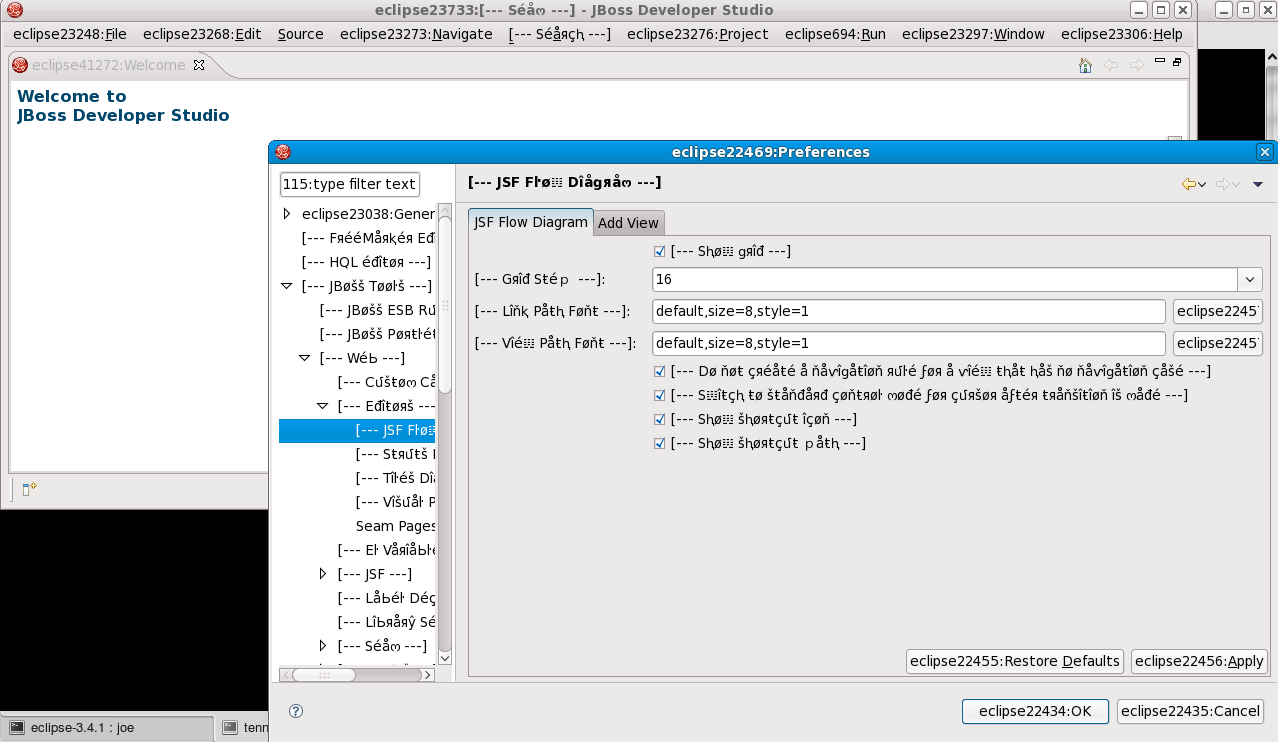
h1. Pseudo langpacks in action
h1. http://community.jboss.org/servlet/JiveServlet/showImage/102-13256-4-1130...
This screenshot shows JBoss Developer Studio (dev version) together with Babel and JBoss Tools pseudo langpacks.
The unusual Unicode characters surrounded by [--- ---] are provided by the JBoss Tools langpacks. The eclipseNNNN:Something strings are provided by the Eclipse Babel langpacks. If we were using French langpacks, these strings would naturally be in French, but pseudolocales (a) can be generated instantly from English text and (b) remain readable as English (once you get used to them!).
Anything in plain English is most likely text which has been hard-coded, either in Eclipse or in JBoss Tools, so the goal is to get rid of any plain English! Any hard-coded text in the above screenshot is there purely for demonstration purposes!
h1. Building langpacks
($jbt is the directory containing JBoss Tools source code)
In a terminal window:
* cd $jbt/i18n
* ant cleanpot #[temporary workaround]
* ant all
h1. Installing langpacks via update site (for precompiled JBT/JBDS)
NB: For now, you will need to build the langpacks yourself as shown above.
In Eclipse+JBoss Tools 3.0, or JBoss Developer Studio 2.0:
1. use Help/Software Updates/Available Software/Add Site to add the directory
$jbt/i18n/target/jars/ as an update site, and hit OK.
2. select the new entry "JBoss Tools Localization Update Site", open it up, and select the entire group for Pseudo Locale (en_AA), or other language when real translations become available
3. click Install, and follow your nose.
4. While you're at it, you should probably install one or more of the translations for Eclipse, from the Babel project. Use this update site: http://download.eclipse.org/technology/babel/update-site/ganymede
If your operating system is set to a non-English locale, and you installed the right langpack, Eclipse should come up in that language next time you run it.
On the other hand, if you are using a pseudolocale like en_AA, you will have to force Eclipse to use that locale. Just change your Eclipse/JBDS shortcut to append the options "-nl en_AA"
h1. Installing langpacks the hard way (launching JBT from within Eclipse)
Eclipse 3.4's new update manager P2 doesn't work inside self-hosted Eclipse instances, so we can't use the update site approach. Instead, we use something far more painful...
1. Download all the Babel plugins (v3.4) for your chosen language from one of the mirrors here: http://www.eclipse.org/downloads/download.php?file=/technology/babel/babe....
(NB: If you don't want to download them one by one, you can use Firefox's addon DownThemAll with the fast filter "en_AA_3.4".)
2. Unzip the plugin zips under $jbt/i18n/babel, for example:
** cd $jbt/i18n; mkdir babel; cd babel
** for f in ~/BabelLang*.zip; do unzip -qq $f; done
3. In Eclipse's Preferences, select Target Platform, click Reload, then click Add to bring up a wizard, then select File System and Add the directories $jbt/i18n/target/jars/plugins/ directory and $jbt/i18n/babel/eclipse/plugins/.
4. Create an Eclipse Application launch profile with "all workspace and enabled plugins" and the extra command line "-nl en_AA". (Or your preferred locale.)
Now, whenever you run that launch profile, you should get Babel and JBoss Tools langpacks.
IMPORTANT: Whenever you recompile the langpack plugins with "ant all", you will have to perform step 3 again, since the new build number causes the jar filenames to change. As a shortcut, you can use "ant quick" [formerly ant reall] to rebuild langpacks with the same build number, but be aware that this won't pick up new ResourceBundles.
NOTE: Sometimes, you will find that Eclipse refuses to compile the JBT source code, and complains that it can't find basic classes like java.lang.Object or org.eclipse.swt.SWT. (This often happens if Eclipse has crashed and tries to recompile the entire workspace.) If this happens, you will have to go back to Preferences/Target Platform, click Reload and OK to remove the extra plugins. Then go back in and add the plugins directories again (step 3).
h1. Using and testing pseudo langpacks
Babel pseudo langpacks for en_AA prepend every string with something like eclipseNNNN: or webtoolsNNNN:.
JBoss Tools langpacks replace "Finished building project {0}" with the Unicode string "[--- Fîňîšⱨéđ Ьմîŀđîňց pяøʝéçŧ {0} ---]".
Any strings which appear in plain English have not been externalised. For each string, we will have to work out whether it should be part of a Babel langpack or JBoss Tools.
* Externalisation of JBoss Tools strings is covered by https://jira.jboss.org/jira/browse/JBIDE-3557.
* Unexternalised strings in Eclipse.org projects should be reported to the relevant project: https://bugs.eclipse.org/bugs/.
--------------------------------------------------------------
16 years, 5 months
[JBoss Tools] Document updated/added: "JBossToolsWTPProjectStructures"
by Max Andersen
User development,
The document "JBossToolsWTPProjectStructures", was updated Jan 20, 2010
by Max Andersen.
To view the document, visit:
http://community.jboss.org/docs/DOC-14212#cf
Document:
--------------------------------------------------------------
JBossTools is moving into standardizing default project structures as WTP projects. The deployment structure of these projects are primarily manipulated via the Virtual Component Framework at the bottom, and a Module Factory and associated classes at the top. Differences between our implementations of some of these classes and WTP's examples stem mainly from my efforts to streamline and clean up these classes, making the virtual component draw cleanly from its references, and the module delegate to similarly act as a simple overlay to the VCF.
VCF
The Virtual Component Framework (VCF) draws primarily from it's descriptor file .settings/org.eclipse.wst.common.component. The primary pieces of this framework are a project's "component", the mapped in "folders", and finally references. A component is the primary representation of a project in the VCF. It's root folder can be accessed, as can its references. The root folder will automatically fold any and all resources mapped in the component's xml file, however it will *not* combine in any references. This means any and all <wb-resource> elements will fold in automatically. This logic is in the VirtualFolder class, a core class, and reads the component.xml file to accomplish this.
Next are references. References are *not* automatically mapped in, and it is the job of the Module Factory (and associated classes) to properly take these references and combine them into thet list of deployable artifacts. "References" must refer to other virtual components. These virtual components would then expose *their* root folder, and set of files. References can be one of two types: "USES" or "CONSUMES".
Deployment Factories using VCF
Deployable modules can be asked for two things.The first is a full complete list of member artifacts, and the second is child modules. A full list of member artifacts is not the same as asking the virtual component for it's members. Often, a virtual component's references will also need to be exposed as members, and these items would need to be combined with the VCF's list. Also, as WTP does, sometimes a file which is mapped in directly via the VCF might want to declare itself to be a child module and exposed that way instead. In that case, that file needs to be removed from the current list of members.
While there's no official javadoc demanding any behaviour, past usage from WTP seems to indicate that a "used" referenced component should be exposed as a child module and not combined with the current component's resources. So for example, an ear project which "uses" a web project should expose the web project as a child, and in the final deployment have a path such as SomeEar.ear/SomeWar.war/each/resource.file.
"Consumed" references, however, *should* be combined with the current module's resources as if this consumed resource was actually already placed inside the project. The name of consumed references should not be appended or used at all when consuming these resources. Here, for example, if one utility project "Util1" consumes another "Util2", then all classes and other resources from Util2 should appear as if they were in Util1 all along. So, the class org.example.consumed.Roar should be exposed as Util1.jar/org/example/consumed/Roar.class. You'll notice Util2.jar is not mentioned at all.
Deployment Factory Strategy
WTP's Deployment factories have very complicated members() implementations which try to draw from too many places. Perhaps worse, these locations are not persisted in the project's component.xml and seem to be added as if by magic Our efforts here are to replace "automatically added" pieces of WTP content with persistable and understandable individual units of work, specifically consumed references. New consumed-type references which have been added to JBTools are listed below.
These new reference types are translated by the "ReferenceResolver" API org.jboss.ide.eclipse.as.wtp.core project. A handle / uri is converted into an IVirtualReference for each of these. In the current implementation, each new reference type also has an associated component type, and its own reference resolver.
Persisted WTP References
WTP currently has 3 types of references that are presisted in the component.xml. One is a project reference (a reference to a child project), one is a reference to a jar (either in the workspace or out), and the last is a reference to a variable entry.
Project References
A project reference is persisted in the component.xml in the following way. It's handle uri begins with "module:/resource/".
<dependent-module archiveName="SomeUtil.jar" deploy-path="/" handle="module:/resource/SomeUtil/SomeUtil">
<dependency-type>uses</dependency-type>
</dependent-module>
Jar References
Jar references are persisted in the component.xml in the following way. It's handle uri begins with "module:/classpath/lib"
<dependent-module archiveName="blah1.jar" deploy-path="/" handle="module:/classpath/lib//home/rob/tmp/blah1.jar">
<dependency-type>uses</dependency-type>
</dependent-module>
Variable References
Variable references are persisted in the component.xml in the following way. It's handle uri begins with "module:/classpath/var".
<dependent-module archiveName="some2.jar" deploy-path="/" handle="module:/classpath/var/MEJAR">
<dependency-type>uses</dependency-type>
</dependent-module>
Custom References
There are several types of references which are magically added in WTP's module factories / module delegates. I have tried to replicate them as persistable units here.
Output Folders
WTP deployment factories purposely ignore files ending in .java from the VCF model and then later attempt to dereference these source folders into class folders and include those. Adding a reference to an OutputFoldersVirtualComponent will automatically map in the output folders of all source folders in the project. The constructor for this virtual component allows you to pass in any project. To add this reference to a component, you would first instantiate an OutputFoldersVirtualComponent via its constructor, and then use a utility method in org.jboss.ide.eclipse.as.wtp.core.util.VCFUtil to add the reference. What URI this will have when persisted is determined 100% by the OutputFoldersReferenceResolver, which turns this reference into a uri. The current implementation will return a prefix-id as the first segment, with an optional second segment listing the project who's output folders should be mapped in.
The output-folders references are persisted in the component.xml in the following way. It's handle uri begins with "module:/org.jboss.ide.eclipse.as.wtp.core.vcf.outputFolders"
<dependent-module deploy-path="/" handle="module:/org.jboss.ide.eclipse.as.wtp.core.vcf.outputFolders/[optional Project Name]">
<dependency-type>consumes</dependency-type>
</dependent-module>
Exported Class Folders
Classpath entries which reference class folders in other projects are resolved by this type. In order to be resolved, the classpath entry must be exported *and* have an attribute set on it's classpath entry (org.eclipse.jst.component.dependency). If this seems like duplication to you, thats because it is. If it seems like the user will now need to keep two models in sync himself, he will. And if you don't like this, too bad. Unfortunately this is how it's done in WTP, and for parity, thats how it's done here. Not all exported classpath folders are automatically bundled. Only such entries which also have this flag are bundled. So... where is the UI to modify this flag? Unfortunately we still need to add an "edit reference" button and allow the wizard to present possible changes. For now, the user would need to remove the reference, and create it again. The wizard page in charge of adding this reference allows you to add or remove this flag from certain entries.
The exported class folders references are persisted in the component.xml in the following way. It's handle uri begins with
"module:/org.jboss.ide.eclipse.as.wtp.core.vcf.exportedClassFolders/"
<dependent-module deploy-path="/" handle="module:/org.jboss.ide.eclipse.as.wtp.core.vcf.exportedClassFolders/">
<dependency-type>consumes</dependency-type>
</dependent-module>
The flag on these classpath entries is also persisted in the .classpath file. An example of this attribute is shown here:
<classpathentry exported="true" kind="lib" path="/SomeUtil/build">
<attributes>
<attribute name="org.eclipse.jst.component.dependency" value="/"/>
</attributes>
</classpathentry>
--------------------------------------------------------------
16 years, 5 months
[JBoss Tools] Document updated/added: "Jboss Tools/JBDS guides structure"
by Max Andersen
User development,
The document "Jboss Tools/JBDS guides structure", was updated Jan 20, 2010
by Max Andersen.
To view the document, visit:
http://community.jboss.org/docs/DOC-14510#cf
Document:
--------------------------------------------------------------
While creating a new or updating already existed JBoss Tools/JBDS guide, please keep to the following structure (JBoss Portlet Tools User Guide structure as an example):
1. Introduction
1.1. What is JBoss Portal and Portlet Tools?
1.2. Key Features of JBoss Portlet Tools
1.3. Requirements and Installation
2. JBoss Portlet Tools Tasks
2.1. Creating and Deploying a Java Portlet
2.1.1. Creating a Web Project with JBoss Portlet Capabilities
2.1.2. Adding a Java Portlet to a Web Project
2.1.3. Deploying a Portlet to JBoss Portal
2.2. Creating and Deploying a JSF Portlet
2.2.1. Creating a JSF Project with JSF Portlet Capabilities
2.2.2. Adding a JSF Protlet to the Project and Deploying It to JBoss Portal
2.3. Creating and Deploying a Seam Portlet
2.3.1. Creating a Seam Project with Seam Portlet Capabilities
2.3.2. Adding a Seam Protlet to the Project and Deploying It to JBoss Portal
3. Reference
3.1. JBoss Portlet Descriptors
3.2. Wizards
3.2.1. Java Portlet Wizard
3.2.2. JSF/Seam Portlet Wizard
3.3. JBoss Portlet Preferences
4. Summary
4.1. Other Relevant Resources on the Topic
*
*
*Comments:*
* The "Key Features of [plugin name]" section should contain the table included key features (wizards, editors, tasks, etc.) of the plugin you're describing with short descriptions and references to the appropriate guide section.
* The "Requirements and Installation" section should provide minimal requirements on the environment the plugin needs and installation procedure (or reference to it).
* All procedural operations must be put into the "[plugin name] Tasks" chapter. Each section of the chapter is a tutorial on a particular topic.
* The referential data should be stored in the "Reference" chapter.
* Remember to summarize the results and provide the links to other relevent resources in the "Summary" chapter.
--------------------------------------------------------------
16 years, 5 months
[JBoss Tools] Document updated/added: "JBossToolsDocsFuture"
by Max Andersen
User development,
The document "JBossToolsDocsFuture", was updated Jan 20, 2010
by Max Andersen.
To view the document, visit:
http://community.jboss.org/docs/DOC-10795#cf
Document:
--------------------------------------------------------------
h2. Overview of the improvements required by JBossTools/JBDS Docs users
This post is created in order to improve current documentation of JBoss Tools and JBoss Developer Studio products.
Here you can give your view on what parts of guides you hold an interest in, what chapters should be added or improved.
Feel free to add your +1 in "Votes" column or add a new item to this wiki article with directly. It helps us to improve our documentation.
For example, you don't like how the New Seam Project Wizard is described or you don't see the needed
information - find the Seam Dev Tools Reference Guide in the table and add your +1 next to "New Seam Project wizard" chapter or write your chapter name which you would like to see in future.
Thank you.
h3. Reference Guides
|| Content || Version || Votes || Comments ||
|| Getting Started with JBoss Developer Studio | | | |
| Configuring Java Environment | 1.1.0.GA | +0 | Do you have any problems with JDK installation in Linux? |
| JBDS Installation | 1.1.0.GA | +0 | Do you need more info on JBDS installer? FAQ? |
| JBDS Update | 1.1.0.GA | +0 | |
| Manage JBoss AS from JBDS | 1.1.0.GA | +0 | Do you need more description on how to use JBoss server in JBDS? Maybe video guide? |
| First Project with JBDS | 1.1.0.GA | +0 | This chapter is a set of hands-on labs. Is it good? Do you need more labs or tutorials? |
| Developing a simple JSP web application | 1.1.0.GA | +0 | |
| RAD development of a simple JSF application | 1.1.0.GA | +0 | |
|| Seam Dev Tools Reference Guide | | | |
| New Seam Project wizard | 2.1.0.GA | +1 | What wizard steps are not clear for you? |
| Directory Structure of the Generated Project | 2.1.0.CR1 | +1 | It includes WAR and EAR deployment |
| Seam Menus and Actions | 2.1.0.GA | +1 | |
| Seam Wizards | 2.1.0.GA | +1 | |
| Seam Generate Entities | 2.1.0.GA | +1 | More info on this wizard? |
| Seam Editors Features | 2.1.0.GA | +1 | |
| Seam Views | 2.1.0.GA | +1 | |
| Seam Preferences | 2.1.0.GA | +1 | |
| Generate a CRUD Database Application | 2.1.0.GA | +1 | |
| The CRUD Application Walkthrough | 2.1.0.GA | +1 | |
| Using TestNG project | 2.1.0.GA | +1 | Vote if you need more info or video on using TestNG |
|| Visual Web Tools Reference Guide | | | |
| Visual Page Editor | 1.1.0.GA | +0 | Do you need video example on VPE usage? |
| VPE and Docbook | TO DO | +1 | Description on how to create a visual Docbook editor http://jira.jboss.com/jira/browse/JBIDE-1304 |
| More Editors | 1.1.0.GA | +1 | |
| JBoss Tools Palette | 1.1.0.GA | +1 | |
| Web Projects View | 1.1.0.GA | +1 | |
| JBoss Tools Preferences | 1.1.0.GA | +1 | |
|| JBoss Server Manager Reference Guide | | | |
| Runtimes and Servers in the JBoss AS plugin | 1.1.0.GA | +1 | |
| JBoss Server View | 1.1.0.GA | +1 | |
| Project Archives View | 1.1.0.GA | +1 | |
| Deploying Modules | 1.1.0.GA | +1 | Includes deploying with Run On Server Wizard, deploying single files |
|| jBPM Tools Reference Guide | | | |
| jBPM Runtime Installation | 3.1.2.GA | +1 | |
| jBPM Graphical Process Designer | 3.1.2.GA | +1 | |
| jBPM views | 3.1.2.GA | +0 | |
| Test Driven Process Development | 3.1.2.GA | +1 | |
| Actions:jBPM Integration Mechanism | 3.1.2.GA | +0 | |
| jBPM Properties View | TO DO | +0 | Description of Properties tabs (Exceptions, Events, Timers, Advanced) |
|| Hibernate Tools Reference Guide | | | |
| Hibernate Tools Installation | 3.2.1.GA | +1 | |
| Code generation architecture | 3.2.1.GA | +1 | |
| Hibernate Wizards | 3.2.1.GA | +1 | Includes Mapping File, Configuration File, Console Configuration, Reverse Engineering |
| Hibernate Mapping and Configuration File Editor | 3.2.1.GA | +1 | |
| Structured Hibernate Mapping
Configuration File Editor | 3.2.1.GA | +1 | |
| Reveng.xml Editor | 3.2.1.GA | +1 | |
| Hibernate Console Perspective | 3.2.1.GA | +1 | Do you need more info on request execution and project structure? |
| Ant Tools | 3.2.1.GA | +0 | Hibernate Configurations and Exporters, Reverse Engineering |
|| ESB Editor Reference Guide | | | |
| ESB Framework Installation | 2.1.0.GA | +0 | |
| Creating a ESB File | 2.1.0.GA | +0 | |
| ESB Editors Features | 2.1.0.GA | +0 | |
|| Exadel Studio Migration Guide | | | |
| Migrate workspace | 1.1.0.GA | +0 | |
| Migration of JSF and Struts Projects | 1.1.0.GA | +0 | |
h3. Tutorials
|| Content || Version || Votes || Comments ||
|| JSF Tools Tutorial ||
| Creating a Simple JSF Application | 2.1.0.GA | +0 | This is a classic/old style of JSF development with JBDS, the Hello World example. Do you need more examples? |
|| Struts Tools Tutorial ||
| Creating a Simple Struts Application | 2.1.0.GA | +0 | This is a classical Struts usage. Do you need more tutorials on Struts? |
|| Seam Tools Tutorial | TO DO | +0 | Are you interested in Seam tutorial? What features are needed to be described? |
h3. Movies
|| Content || Version || Votes || Comments ||
| Creating Console Configuration | 1.1.0.GA | +0 | This movie shows how to create a console configuration for JPA; but it is the same steps needed for projects using hbm.xml or Hibernate Annotations stand alone |
| Importing Custom Tag Library to Palette | 1.1.0.GA | +0 | It shows how you can easy & fast add a CustomTag Library to the Palette |
| Creating Seam2 + EJB3 EAR Project | 1.1.0.GA | +0 | The demo shows step-by-step how to create such an application |
| RichFaces Toolkit for developing Web application | 1.1.0.GA | +0 | This demo shows how to create a jsf application with simple content using the RichFaces components |
| Edit and run HQL/JPA-QL queries | 1.1.0.GA | +0 | Shows how to use the HQL editor with code completion and dynamic sql preview and how to inspect the results |
h3. Documentation usability
|| Name || Votes || Comments ||
| Navigation | +0 |
| Stylesheets | +0 |
| PDF version | +0 | What improvements are needed for PDF version? |
h3. What do you want to see more?
|| Name || Votes || Comments ||
| Reference Guides | +1 | |
| Tutorials | +1 | |
| Video Tours | +1 | |
| Presentations | +1 | |
Thank you
--------------------------------------------------------------
16 years, 5 months
[JBoss Tools] Document updated/added: "HowToBuildJBossTools"
by Max Andersen
User development,
The document "HowToBuildJBossTools", was updated Jan 20, 2010
by Max Andersen.
To view the document, visit:
http://community.jboss.org/docs/DOC-9918#cf
Document:
--------------------------------------------------------------
h2. Introduction
Checking out and building JBoss Tools with Eclipse is probably much easier than you think. Read on to see the details.
Note: external plugins like jbpm and drools exists in these projects repositories. These instructions are for the primary jboss tools plugin set.
Please see the http://community.jboss.org/docs/DOC-12852.
h2. Get the source
The easiest is to just checkout the complete trunk/branch/tag of JBoss Tools you are interested in via command line or your favorite svn client. Using Eclipse to do it is cumbersome since you have to checkout each module individually.
To get committer trunk:
svn co https://svn.jboss.org/repos/jbosstools/trunk
To get anonymous trunk (readonly mirror):
svn co http://anonsvn.jboss.org/repos/jbosstools/trunk
h2. Get Eclipse SDK
If you do not already have it download Eclipse SDK 3.3 and Webtools 2.0 from
http://www.eclipse.org. SDK is important since otherwise you do not have the PDE plugins which is needed for plugin development.
The easiest is to get Eclipse JEE which is a full SDK bundle with the required plugins.
h2. Get XULRunner
XULRunner is required for the Visual Page Editor (vpe) components.
Get org.mozilla.xpcom_1.8.1.3-20070904.jar from http://ftp.mozilla.org/pub/xulrunner/releases/1.8.1.3/contrib/eclipse together with the OS specific org.mozilla.xulrunner binary.
These two jars need to be unzipped as directories into your eclipse plugins directory. e.g. org.mozilla.xpcom_1.8.1.3-20070904.jar should be unzipped into eclipse/plugins/org.mozilla.xpcom_1.8.1.3-20070904.
Otherwise you will have compilation errors when import the JBoss Tools project.
h2. Start Eclipse
To be sure Eclipse picks up changes in the plugins directory start eclipse with the -clean command line argument, e.g. eclipse -clean.
Adding -debug can also help since you will get information about which plugins that could not load.
h2. Import JBoss Tools
*File > Import > Existing projects into workspace*
Set "Select root directory" to the root directory of where you have checked out JBoss Tools.
The Projects lists should now be filled up and you can press Finish to get all of the projects in one simple operation.
When the import is done it will take some time before Eclipse have build all the projects. Be patient
Tip: If there are some plugins with errors and they are from a directory named "legacy" then just remove them since they are not relevant for JBoss Tools functionallity.
h2. Run it
Now you should be able to select a plugin project and click *Run As ... > Eclipse Application* and you will have an Eclipse with JBoss Tools plugins loaded and ready to be modified as you please.
h2. Contribute patches
If you fix or add something useful create a patch for each of the affected plugins (or use svn command line to do it for the whole trunk) by right clicking on the plugins and choose *Team > Create* patch.
If you do not have a *Team > Create patch* available then it is because you do not have an SVN plugin or have not yet enabled svn for the project.
The generated patches you can submit to our http://jira.jboss.org/JBIDE.
--------------------------------------------------------------
16 years, 5 months
[JBoss Tools] Document updated/added: "JBoss Tools vs Developer Studio"
by Max Andersen
User development,
The document "JBoss Tools vs Developer Studio", was updated Jan 20, 2010
by Max Andersen.
To view the document, visit:
http://community.jboss.org/docs/DOC-13300#cf
Document:
--------------------------------------------------------------
Below is a comparison matrix to illustrate what parts of JBoss Tools have been included into the various releases of Developer Studio and which additional out-of-the-box setup and software Developer Studio provides.
||
|| *JBoss Tools 2.x* || *JBoss Tools 3.0.x* || *JBoss Tools 3.1.x (in progress)* || *Developer Studio 1.x* || *Developer Studio 2.x* || *Deve;loper Studio 3.1.x (in progress)* ||
| *Features:* | | | | | | |
| Hibernate | X | X | X | X | X | X |
| Seam | X | X | X | X | X | X |
| jBPM | X | X | X | X | X | X |
| Visual Page Editor | X | X | X | X | X | X |
| FreeMarker | X | X | X | X | X | X |
| Struts | X | X | X | X | X | X |
| JBoss AS | X | X | X | X | X | X |
| Project Archives | X | X | X | X | X | X |
| Drools | | X | X | | X | X |
| Portlet | | X | X | | X | X |
| ESB | | X | X | | X | X |
| JBoss Webservices |
| X | X | | X | X |
| Smooks | | X | X | | | X |
| Birt Integration | | X | X | | | |
| TPTP Integration | | X | X | | | |
| Maven | | | X (requires m2eclipse) | | | X (To be decided, possibly as tech preview) |
| | | | | | | |
| *Setup:* | | | | | | |
| Zip | X | X | X (deprecated) | | | |
| Update site | X | X | X | | X (since 2.1) | X |
| Archived Update Site | | | X | | | |
| Installer | |
| | X | X | X |
| | | | | | | |
| *3rd Party plugins:* | | | | | | |
| Eclipse | |
| | X | X (3.4) | X (3.5) |
| Web Tools | |
| | X | X | X |
| SpringIDE | |
| | X | X | X |
| TestNG | |
| | X | X | X |
| m2eclipse | | | | | | (To be decided) |
| | | | | | | |
| *Integrated Platforms:* | |
| | |
| |
| JBoss Enterprise Application Platform | |
| | X | X | X |
| JBoss SOA Platform | |
| | | X (separate download) | X (separated download) |
| JBoss Enterprise Portal Platform | | | | | X (separate download) | X (separate download) |
--------------------------------------------------------------
16 years, 5 months
[JBoss Tools] Document updated/added: "Building JBoss Tools Documentaion"
by Max Andersen
User development,
The document "Building JBoss Tools Documentaion", was updated Jan 20, 2010
by Max Andersen.
To view the document, visit:
http://community.jboss.org/docs/DOC-13341#cf
Document:
--------------------------------------------------------------
You can download a folder with a plug-in either from a http://anonsvn.jboss.org/repos/jbosstools or a https://svn.jboss.org/repos/jbosstools ( if you have commiter rights) repsositories . In the plug-in's folder you will find a directory with documentation.This instruction explains how you can build the documentation.
h3. Prerequisites
1.Maven building tool
2.You need to make sure you have downloaded all required files and folder from the repository:
a) Plug-in folder
b) the +*documentation*+ folder
3.Maven requires a number of plug-ins (jDocBook etc.) to generate JBoss Tools documentation and therefore you need to specify where Maven can download those plug-ins. The easiest way is to create a new profile in the Maven configuration file (*+settings.xml+*). You will find the file in *%M2_HOME%/conf/* or *%USER_HOME%/.m2/*. Open the *+settings.xml+* and add the following profile:
<profile>
<id>documentation</id>
<repositories>
<repository>
<id>maven2-repository.dev.java.net</id>
<name>Java.net Repository for Maven</name>
<url>http://download.java.net/maven/1</url>
<layout>legacy</layout>
</repository>
<repository>
<releases>
<enabled>true</enabled>
</releases>
<snapshots>
<enabled>false</enabled>
<updatePolicy>never</updatePolicy>
</snapshots>
<id>repository.jboss.com</id>
<name>Jboss Repository for Maven</name>
<url>http://repository.jboss.com/maven2/</url>
<layout>default</layout>
</repository>
</repositories>
<pluginRepositories>
<pluginRepository>
<releases>
<enabled>true</enabled>
</releases>
<snapshots>
<enabled>false</enabled>
<updatePolicy>never</updatePolicy>
</snapshots>
<id>repository.jboss.com</id>
<name>Jboss Repository for Maven</name>
<url> http://repository.jboss.com/maven2/ </url>
<layout>default</layout>
</pluginRepository>
<pluginRepository>
<releases>
<enabled>false</enabled>
</releases>
<snapshots>
<enabled>true</enabled>
</snapshots>
<id>snapshots.jboss.org</id>
<name>Jboss Snapshots Repository for Maven</name>
<url>http://snapshots.jboss.org/maven2/</url>
<layout>default</layout>
</pluginRepository>
</pluginRepositories>
</profile>
Then you need to activate the profile if you want to use it permanently. Find the +<activeProfiles>+ tag and add this line as a child element:
<activeProfile>documentation</activeProfile>
Otherwise you should explicitly activate the profile with *-P profile_name* option while building the documentaion.
h3. Building Steps
So, you checked out the plug-in for which you want to build documentation and the documentation folder. And now you can proceed to building the documentation.
1.Find the +*pom.xml*+ file, that is responsible for building the documentation, in the plug-in folder you downloaded. Normally it’s located in “/docs/reference”.
2.Run *mvn clean install* or *mvn clean install -P profile_name* (if you didn't activate your profile in Maven's *+settings.xml+*) command in the folder with *+pom.xml+* to start building the documentation.
Example:
user@user-desktop:/home/user/trunk/seam/docs/reference$ mvn clean install
3.If everything is configured correctly you will see a “BUILD SUCCESSFUL” message. You will also see a generated *+target+* folder that contains the built documentation.
Example:
To open the HTML version of the “Seam Dev Tools Reference Guide” guide you need to proceed to
user@user-desktop:/home/user/trunk/seam/docs/seam/docs/reference/target/docbook/publish/en-US/html_single
and open index.html file.
h3. Documentation Profiles
There are 3 profiles that you can build documentation with:
*release* builds release documentation with “new” or “updated” markers next to the corresponding chapters and sections titles
*releaseJBDS* builds release documentation with Jboss.com styles for commercial products
*diffmk* builds documentation with markers highlighting changes comparing to the previous release version and sets “new” or “updated” markers next to the corresponding chapters and sections titles.*Note:* Please make sure that you have the master_output.xml file (normally the file can be found in \pluginName\docs\reference\en\) as a new guide may not have such file since there's nothing to compare with.
This command launches building documentation with a profile.
mvn install -Pprofile_name
By default, with no profile specified, Night Build docs are generated.
In order to build all the guide from one place you need to have JBoss Tools trunk checked out then cd to JBoss_tools_trunk/documentation/jbds-docs/ to build JBDS guides with jboss.com styles or to JBoss_tools_trunk/documentation/jboss-tools-docs to build JBoss Tools guides.
and run
mvn clean install assembly:assembly
You can optionally use a profile in this command.
mvn clean install assembly:assembly -Pprofile_name
--------------------------------------------------------------
16 years, 5 months